Raspberry Pi Plex Server: Complete Setup Guide
Introduction to Raspberry Pi Plex Server
Setting up a Plex Media Server on a Raspberry Pi is an exciting project that combines the flexibility of a dedicated media server with the affordability of Raspberry Pi hardware. If you're a media enthusiast looking to maximize your budget hardware capabilities, this guide is for you. The Raspberry Pi is an incredible tool for hobbyists and professionals alike, known for its versatility. Let's dive into setting up a Plex server that allows you to stream your media collection effortlessly.
Choosing the Right Raspberry Pi Model
Before you begin, it's crucial to choose the right model of Raspberry Pi for your Plex server. The Raspberry Pi 4 is recommended due to its improved CPU and RAM options. It can handle transcoding better than earlier models. However, if you're planning to stream 4K content, you might run into some limitations with any Raspberry Pi model. For standard HD streaming, the Pi 4 should suffice.
Installing the Operating System
To start, you'll need to install an operating system on your Raspberry Pi. Raspberry Pi OS is a popular choice, but you can also use Ubuntu if you're comfortable with Linux. Begin by downloading the OS image and using a tool like balenaEtcher to flash it onto your microSD card. Make sure the microSD card is at least 16GB for the operating system and additional software.
Setting Up Plex Media Server
Once your Raspberry Pi is up and running with the OS, it's time to install Plex Media Server. You can download the Linux version of Plex from their official website. Use terminal commands to install it. Make sure to set up your server with a static IP address to avoid connectivity issues. After installation, you can access the Plex dashboard via your web browser to start configuring your libraries.
Library Configuration
Organize your media files efficiently. Plex requires a proper naming convention for it to effectively catalog your media. For tips on organizing your media, check out our guide on how to organize and name your media files for Plex.
Optimizing Performance
Performance optimization is key to a smooth streaming experience. Ensure your Raspberry Pi has adequate cooling, as Plex can be demanding. Overclocking your Pi is an option, but be cautious of overheating. Consider using a heatsink or fan for better thermal management.
Network Considerations
For optimal streaming, connect your Raspberry Pi to your network via Ethernet. Wi-Fi can work, but Ethernet is more reliable, especially for high-definition streaming. You might also want to configure your network settings for remote access, allowing you to stream your content from anywhere. Here's a detailed guide on setting up Plex remote access and port forwarding.
Transcoding Limitations
Transcoding is a significant factor when using Plex on a Raspberry Pi. While the Pi can handle direct streaming without much trouble, transcoding 4K content is beyond its capabilities. If you stick to 1080p or lower, you’ll have a smoother experience. You can optimize your media formats by converting files to formats that don’t require transcoding. Learn more about transcoding in our Plex transcoding setup guide.
External Storage Setup
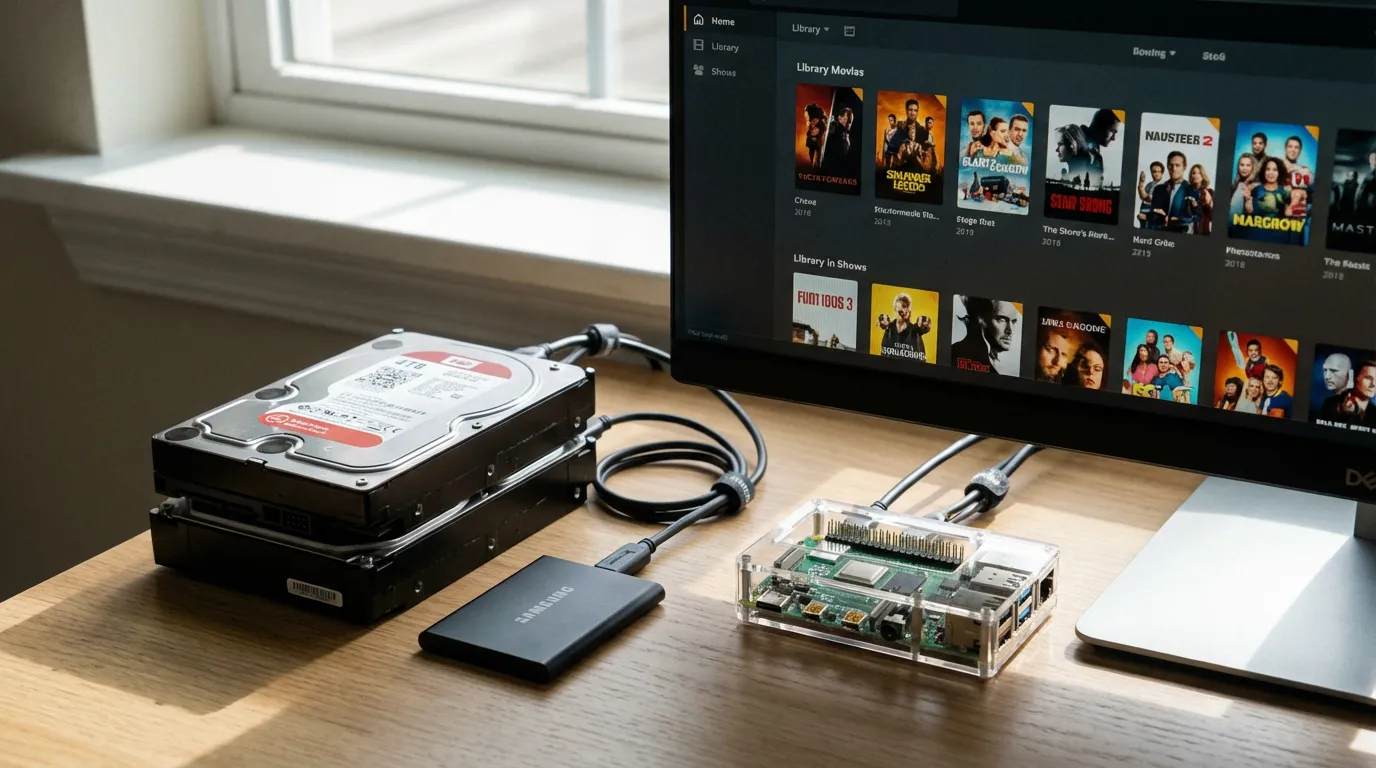
Given the limited storage options on a Raspberry Pi, you’ll likely need external storage. USB 3.0 drives are a good choice to ensure fast data transfer rates. Make sure to format the drives correctly so your Raspberry Pi can read them. Mount your drives and organize your media folders to keep everything running smoothly.
Maximizing Budget Hardware
The beauty of using a Raspberry Pi is getting the most out of a budget-friendly setup. While it may not match the power of dedicated NAS systems, it offers a compact and cost-effective solution for personal use. Check out our comparison of the best NAS options for Plex media servers if you're considering an upgrade in the future.
Conclusion
Setting up a Plex Media Server on a Raspberry Pi is a rewarding journey for any media enthusiast. With careful setup and configuration, you can enjoy your media library streaming across all your devices. Remember to keep your system updated and monitor performance to ensure a seamless experience. If you encounter issues, our Plex troubleshooting guide might be able to help. Enjoy streaming!