How to Set Up Plex Remote Access & Port Forwarding
Introduction to Plex Remote Access
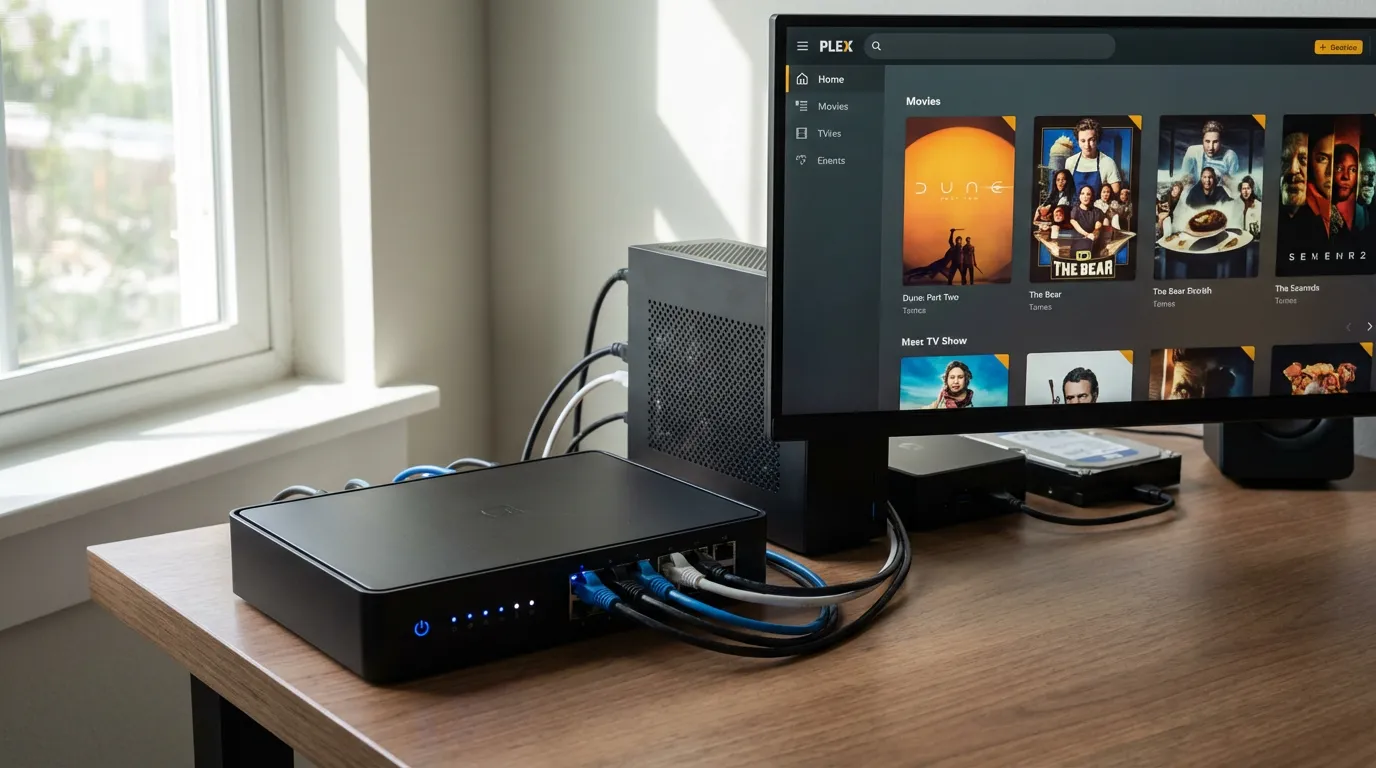
Setting up Plex remote access allows you to stream your media server content from anywhere in the world. It's like having your home theater with you wherever you go. This guide will walk you through enabling remote access, configuring port forwarding, and securing your connection. Whether you're a seasoned Plex user or just starting, these steps will ensure you're streaming smoothly outside your local network.
Understanding Port Forwarding
Port forwarding may sound technical, but it’s simply about opening a specific port on your router to allow external devices to access your Plex server. By default, Plex uses port 32400. This guide covers how to forward this port on various routers, ensuring your media server is accessible from outside your home network.
Why Port Forwarding is Essential
Without port forwarding, your Plex server remains invisible to external devices. Once configured correctly, it allows you to stream movies, TV shows, and more on the go. It's crucial for remote access, but always remember to secure your server to prevent unauthorized access.
Configuring Port Forwarding on Different Routers
Each router brand and model may have a unique interface for setting up port forwarding. Here’s a step-by-step for some popular routers:
Netgear Routers
- Log into your router's web interface. Usually, this address is
http://192.168.1.1orhttp://192.168.0.1. - Navigate to the 'Advanced' tab and find the 'Port Forwarding/Port Triggering' section.
- Click 'Add Custom Service' and enter a service name (e.g., Plex).
- Set the service type to TCP/UDP, and input port range as 32400-32400.
- Enter your Plex server's IP address, save the settings, and reboot the router.
Linksys Routers
- Access the Linksys web interface via the same types of IP addresses as above.
- Go to 'Security' > 'Apps and Gaming' > 'Single Port Forwarding'.
- Add a new entry, setting the external and internal ports to 32400.
- Select TCP/UDP as the protocol, link it to your server's IP, and save.
For other router brands, consult your router's manual or online support to find the port forwarding section.
Troubleshooting Plex Remote Access
Even after setting up port forwarding, you might encounter issues. Here are some common problems and their solutions:
Remote Access Not Working
If Plex remote access isn’t connecting, check your server settings to ensure remote access is enabled. In the Plex web app, go to Settings > Remote Access and make sure it’s active.
Double NAT Issues
If your ISP provides a combined modem/router, you might face a double NAT issue that blocks remote access. Consider bridging your ISP’s device with your router or contact your ISP for assistance.
Firewall Settings
Ensure your firewall isn’t blocking Plex. Configure it to allow traffic through port 32400. For detailed troubleshooting, visit our Plex Troubleshooting Guide.
Securing Your Plex Server
While enabling remote access is convenient, it’s essential to secure your server:
Set a Strong Password
Make sure your Plex account has a strong password. Change it regularly to protect your media content.
Use a VPN
Consider using a VPN with port forwarding support. This adds an extra layer of security and privacy. Check out our comparison of VPN services on this page.
Monitor Server Activity
Regularly check your Plex server’s activity logs for any unauthorized access attempts. This can help you respond promptly to security threats.
Conclusion
Setting up Plex remote access and port forwarding can seem daunting, but by following these steps, you’ll be streaming your media library from anywhere. Remember, securing your connection is just as important as establishing it. With these actions in place, you can enjoy uninterrupted and safe access to your Plex media server.