Complete Kodi Setup with Add-ons for a Polished Home Theater
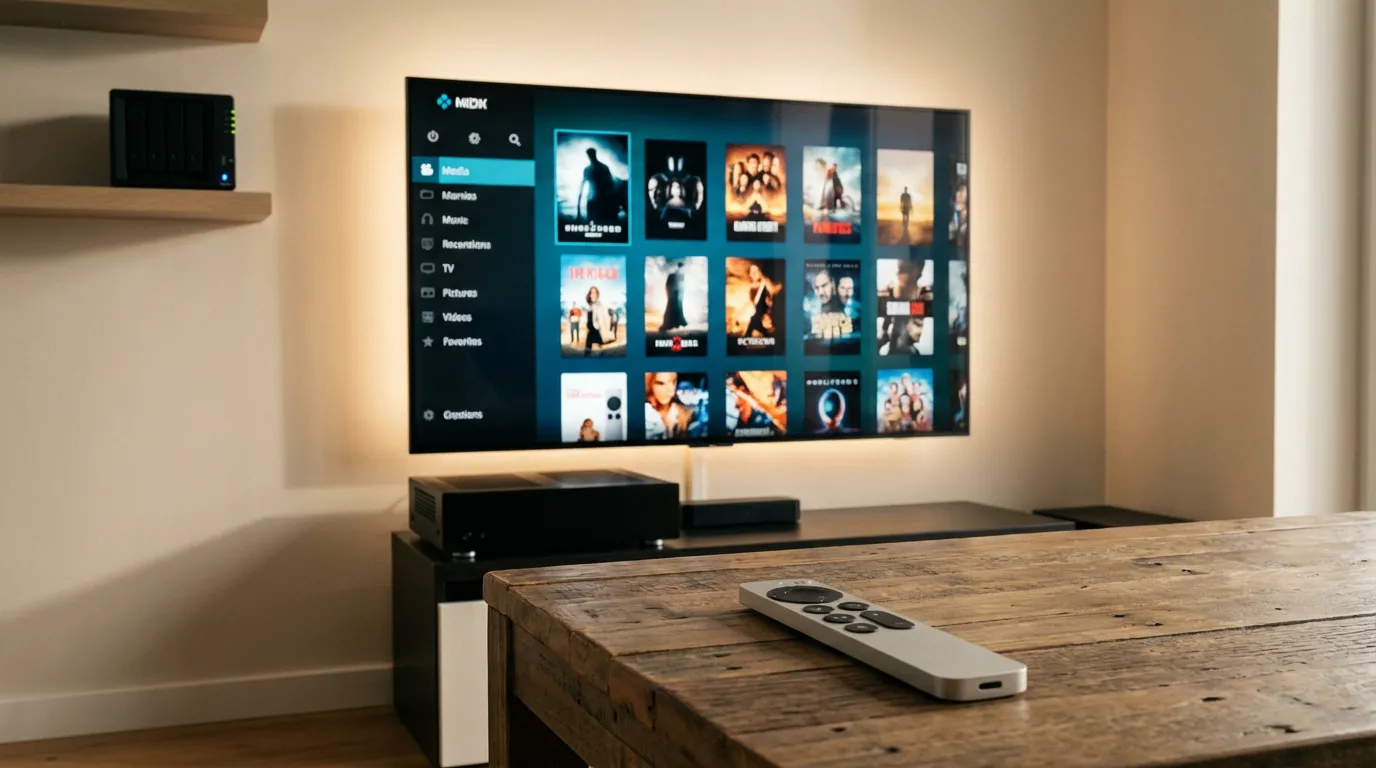
If you run an HTPC, you already know the feeling. Your hardware can play anything. Your network can push huge files. Your TV looks sharp. But the interface still feels like a half-finished project unless you set it up with intent.
Kodi can feel like that on day one. It installs fast, then it stares at you like, “Okay, what now?” If you put in an hour or two, though, it turns into the kind of media center that makes streaming boxes feel cramped. I like Kodi for one reason. It lets you shape the whole experience, not just pick a theme and move on.
This guide walks you through installation, library setup, add-ons that make sense for local media, skin customization that does not collapse under its own weight, and ways to pair Kodi with Plex, Emby, and Jellyfin. You will also get a few practical settings that prevent the usual playback and buffering headaches.
Plan your Kodi setup before you install anything
Before you add skins and plug-ins, decide what you want Kodi to be on your device. If you skip this, you end up with a messy home screen, random add-ons, and a library that never matches what is on disk.
Pick one primary job for Kodi.
Local library player that scans files from a NAS, USB drive, or shared folder.
Frontend for a media server like Plex, Emby, or Jellyfin.
Mixed mode where your local library and server library both show up.
I prefer a clear choice. Mixed mode sounds flexible, but it creates duplicate entries and weird “Where did that poster come from” moments. If you want a tight living-room feel, pick one source of truth for your library and stick to it.
Install Kodi on the right device and keep it clean
Kodi runs on a lot of platforms, which is part of the appeal. Your install steps will vary, but your goal stays the same. Install Kodi from an official store or trusted package source, then run it once with zero add-ons.
On an HTPC, you have two main approaches.
Living-room PC with a keyboard nearby. This is the easiest for setup and troubleshooting.
Android TV device where you want a remote-first interface. This is great when you want a quiet box that you never touch.
After the first launch, do one thing that people skip. Set your language, region, and time format. Then set your audio output device. I have seen too many “Kodi has no sound” problems that come from the wrong output device after a driver update or HDMI handshake.
Set up your media sources the right way
Library setup is where Kodi either becomes a joy or a chore. Kodi expects your files to be named in a way that scrapers can match. If your naming is sloppy, Kodi guesses. Kodi guessing is not cute.
If you want your files to scan cleanly, follow the same naming discipline you would use for Plex. If you need help with that side of the house, this guide on how to organize and name media files explains patterns that keep metadata stable across tools.
Movies source setup
Add your movie folder as a source, then set content type to Movies. Pick a scraper and keep it consistent. If you switch scrapers later, posters and titles can change in ways that make you question your sanity.
Practical naming that works well:
Movies/Movie Name (Edition)/Movie Name (Edition).mkv
Movies/Movie Name/Movie Name.mkv
TV shows source setup
Add your TV folder, set content type to TV shows, then confirm the scraper. For TV, Kodi cares about season and episode numbering.
Keep episodes like this:
Show Name/Season 01/Show Name S01E01.mkv
Music and photos if you care about them
Kodi can manage music and photos, but I have mixed feelings. Music works fine if you tag carefully. Photos feel dated unless you commit to a slideshow setup. If your HTPC is a movie machine, you can skip both and keep the home screen focused.
Dial in playback settings for smooth video and clean audio
Kodi can play almost anything, but the default settings do not always match how home theaters work. This is where you stop stutter, fix lip-sync, and avoid the “why does HDR look washed out” spiral.
Match refresh rate and reduce judder
Go to Player settings and enable “Adjust display refresh rate.” Set it to match on start and stop. This helps films play at the right cadence. Some TVs handle this well. Some do not. If your TV blanks out for a second when playback starts, that is normal behavior for refresh switching.
Audio passthrough and speaker setup
If you use an AVR or soundbar that can decode Dolby and DTS formats, turn on passthrough. Then select the formats your system supports. If you guess, you can end up with silence on certain files.
If you use TV speakers, keep it simple. Disable passthrough and set the output to stereo. It is not glamorous, but it avoids weird downmix behavior.
Hardware decoding and subtitles
Enable hardware acceleration for your platform. Then test a high bitrate file you know is demanding. If playback glitches, your GPU driver or device decoder might be picky with certain codecs. If you want more context on formats, this guide on MKV vs MP4 for media servers lines up with what Kodi tends to like in real setups.
For subtitles, set a default font size you can read from the couch. People leave it tiny, then blame the file. Your eyes deserve better.
Pick add-ons that support a home theater workflow
Add-ons are where Kodi gets fun, and also where it can get messy fast. I am picky here. I like add-ons that do one job well and stay out of the way.
Stick to official repository add-ons when you can. They update cleanly and you spend less time babysitting broken dependencies.
Core add-ons worth installing early
Subtitle services so you can download captions from the player. Choose one provider and test it.
Keymap Editor if you use a remote, keyboard, or controller and want sane button behavior.
Backup so you can export your setup before you experiment with skins and widgets.
That is it for the early phase. You do not need ten “maintenance wizard” tools. Those tend to create confusion, then ask you to clear caches you did not need to touch.
Library and metadata helpers
If you care about posters and fanart, you will eventually care about consistency. Kodi gives you a lot of control over artwork, but you need to keep your sources stable. If you change scrapers midstream, your library can drift.
My advice is boring but effective. Scan your library once. Fix mismatches immediately. Then stop tinkering.
Skin customization without turning Kodi into a science project
Skins are a trap and a gift. A good skin makes Kodi feel like a polished appliance. A heavy skin with too many widgets can make your HTPC feel slower than it should.
When you pick a skin, ask yourself two questions.
Do I want speed, or do I want a flashy home screen with widgets?
Am I willing to maintain this when add-ons update and widgets break?
I like a balanced approach. Use a skin that supports widgets, but do not build a dashboard that loads ten rows of content every time you open Kodi. That looks impressive for one day, then it becomes a chore.
Home screen layout that feels intentional
Keep your main menu tight. Movies, TV, Music if you use it, Settings, Power. Add one shortcut to your server add-on if you run Plex, Emby, or Jellyfin.
Widgets can help, but keep them limited.
Continue Watching
Recently Added Movies
Recently Added Episodes
If you add more than that, your home screen becomes a scrolling job board.
Artwork and theme choices
Use a dark theme if your TV sits in a dim room. Bright menus look harsh at night. If you want Kodi to feel like a theater interface, dark wins.
Also, set fanart to a mild blur if your skin supports it. Sharp fanart behind text can make the UI harder to read. It looks stylish in screenshots, then you squint from the couch.
Remote control and couch friendly input
Your interface does not matter if input feels clumsy. HTPC users fall into two camps. Keyboard people and remote people. I bounce between both, which means I care about not fighting the UI.
Simple remote setups that work
CEC if your TV and receiver behave. It can be smooth. It can also be moody when devices wake up in the wrong order.
IR remote with a USB receiver for predictable buttons.
Bluetooth remote for devices that support it cleanly.
If you care about polish, map a few buttons.
Back should always go back, not exit the app.
Menu should open context options.
Stop should stop playback, not dump you to the home screen.
Integrate Kodi with Plex, Emby, and Jellyfin
Here is where it gets personal. Some people want Kodi to be the library manager. Others want Kodi to be the player, while the server handles metadata, watch state, and user accounts. I lean toward server-managed libraries if you watch on multiple devices. It keeps your progress consistent.
Kodi and Plex integration
Plex works well when you want your library and watch status to stay synced across TVs, phones, and browsers. Kodi can act as a client, but you should decide which side owns metadata.
If you already run Plex and want to tighten your server setup, start with a solid foundation. This beginner Plex media server setup guide covers the parts that prevent headaches later, like library structure and remote access planning.
My opinion. If Plex is your main library brain, let Plex handle posters and collections. Use Kodi for playback and the living-room UI.
Kodi and Emby integration
Emby appeals to people who want more control and a server that feels like it belongs to them. Kodi plus Emby can feel tight when you want server-managed metadata with Kodi’s interface flexibility.
If you are still deciding between servers, the comparison page at Plex vs Emby vs Jellyfin is worth a look before you commit your time to one ecosystem.
Kodi and Jellyfin integration
Jellyfin has a lot of fans because it stays open and flexible. Pairing it with Kodi can give you a fast local interface while Jellyfin keeps users and watch progress consistent.
If you run Jellyfin and want to make the interface feel more like a curated theater, themes and branding can change the vibe more than you would expect. This guide on using Jellyfin themes fits the same mindset as skinning Kodi.
Bring cinema mode vibes to your media server setup
Kodi has its own ways to build a cinema-style flow, but a lot of people now handle trailers and intros at the server layer, then let clients play content. That is where prerolls come in. I love prerolls and also find them a little ridiculous, in a good way. You are adding a fake theater moment to your living room. It is extra. That is the point.
If you run a server like Plex, Emby, or Jellyfin, you can add preroll videos and make your setup feel like a mini cinema. If you want to browse options, the preroll browsing page makes it easy to find a style that fits your skin and room lighting.
For Jellyfin users, this Jellyfin cinema mode prerolls setup guide shows how to wire it up so it plays before your movies. Once you get used to it, plain playback feels a bit empty.
Performance tuning that matters on real hardware
If Kodi feels slow, it usually comes from one of three things. Heavy skin widgets, slow storage, or a struggling device decoder.
Keep widgets under control
Widgets pull data and artwork. Artwork can be large. Large images over Wi-Fi can cause lag that feels like a CPU issue. Limit widgets and set a small cache size if your skin supports it. If your skin allows it, prefer local artwork caching.
Use wired Ethernet when you can
Wi-Fi works until it does not. High bitrate files can expose every weak spot in your network. If you can run Ethernet to your HTPC, do it. It makes your setup feel calm.
Choose sane video settings
Turn off post-processing junk you do not need. If your TV or GPU already handles upscaling and motion smoothing, do not stack extra processing inside Kodi. It can introduce artifacts and delay.
Troubleshooting problems you will run into
These are the problems that show up in living rooms, not lab tests.
My library scanned wrong titles
Fix the file names first. Then refresh metadata for that item. If you keep forcing manual matches without fixing names, you will repeat the same problem later when you rebuild your library.
Playback stutters on high bitrate files
Test local playback from an SSD or local drive. If it plays fine locally, your network is the issue. If it still stutters, your device decoder or settings are the issue. Try toggling hardware decoding or switching render methods.
Audio is out of sync
Check refresh rate switching. If refresh rate changes midstream, some setups drift. Try disabling refresh rate switching as a test. If it fixes sync, your TV or AVR handshake is causing timing issues. If you keep refresh switching on, set an audio offset and save it per file type.
Kodi feels slow after I installed a skin
Strip widgets. Reduce background fanart effects. If that does not help, switch skins. I know it feels like surrender, but a snappy interface beats a fancy one you avoid using.
A simple setup template you can copy
If you want a clean baseline that works for most HTPC living rooms, start here.
| Area | What to do | Why it helps |
|---|---|---|
| Library | Use clean naming, one scraper per media type | Fewer mismatches and less rework |
| Playback | Enable refresh rate switching, set audio output correctly | Smoother motion and fewer audio surprises |
| Add-ons | Install subtitles, backup, keymap tool | Adds comfort without clutter |
| Skin | Use a light widget setup and readable text | Fast navigation from the couch |
| Server | Let Plex, Emby, or Jellyfin own watch state | Consistent progress across devices |
Where most setups go off the rails
I see the same pattern. Someone installs Kodi, then installs a pile of add-ons, then installs a heavy skin with lots of widgets, then wonders why it feels unstable. Kodi can handle a lot, but your time and patience cannot.
If you want a setup you can live with, treat Kodi like a home theater appliance. Keep the surface clean. Make one or two choices and commit. Then spend your energy on what matters, like clean artwork, smooth playback, and a home screen that makes sense from ten feet away.
And if you want that extra theater touch, a well-placed preroll before a movie can make the whole system feel intentional. It is a small detail that changes the mood of the room.
If you want to browse options and see what fits your vibe, start at Prerolls.me and pick a style that matches your skin and lighting.