Beginner's Guide to Setting Up Your Plex Media Server
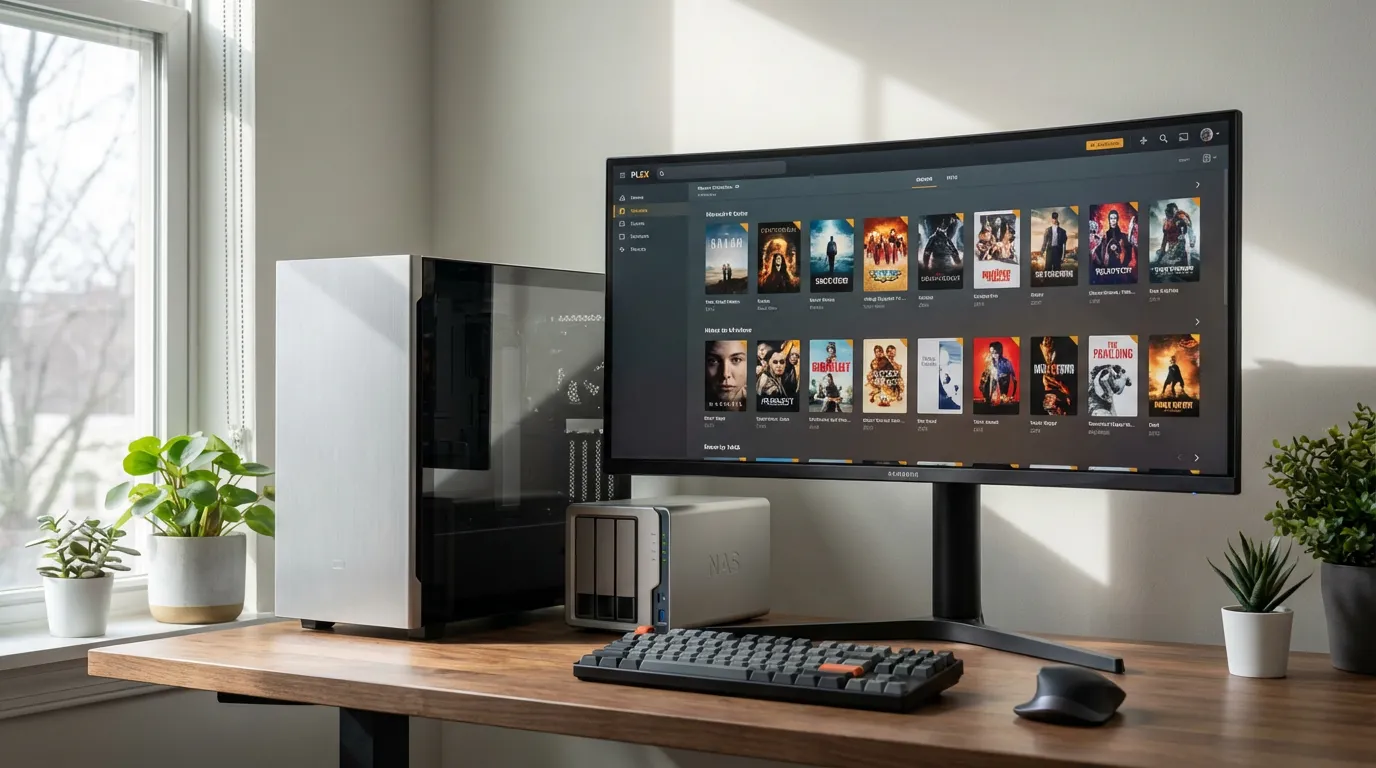
Why Choose Plex for Your Media Server Needs?
Setting up a home media server can be a rewarding endeavor, offering a centralized hub for all your media files, which you can access from anywhere. Plex is a leading choice for many home media enthusiasts due to its intuitive interface and robust feature set.
So, what makes Plex stand out? Its capabilities stretch far beyond just playing movies or music. With Plex, you can organize your media, stream your library to any device, and even share access with family and friends. It's an all-in-one solution that streamlines how you consume media.
Hardware Requirements for a Plex Media Server
Before diving into the technical setup, it's essential to ensure you have the right hardware. Plex can run on various platforms, but here are some basic requirements:
- Processor: A multi-core processor is recommended for smooth transcoding.
- RAM: At least 4GB, but 8GB is preferable for better performance.
- Storage: Consider a large and fast hard drive, as media files can consume a lot of space.
- Network: A stable internet connection is crucial, especially for remote access.
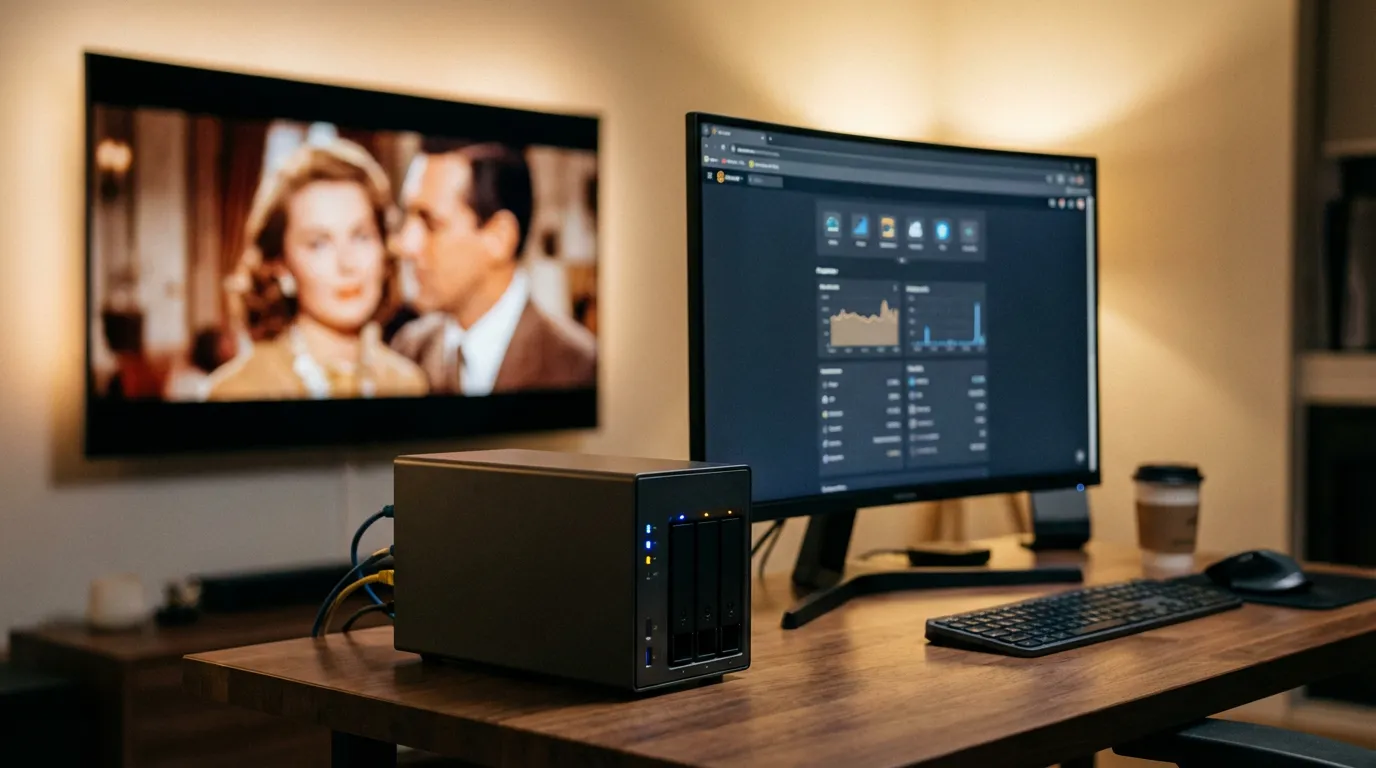
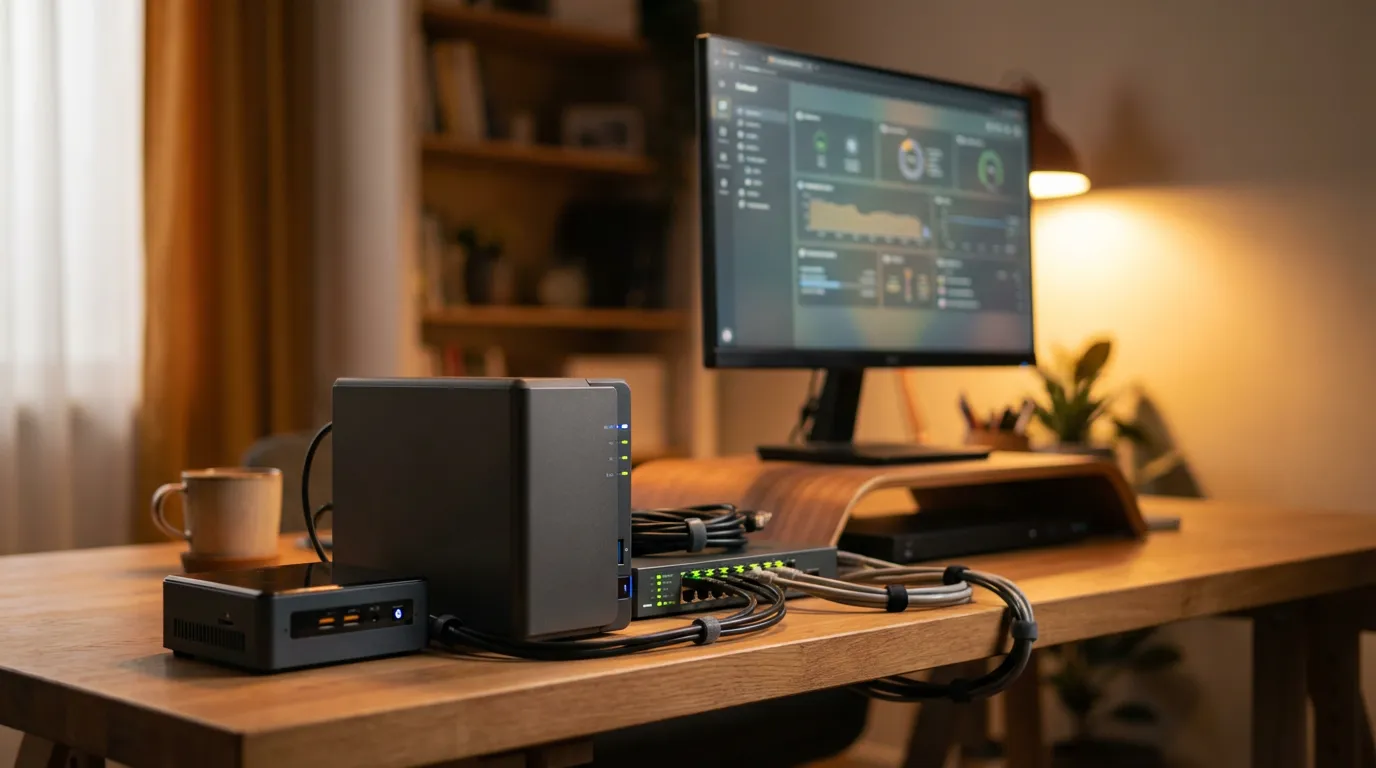
For those who want an always-on solution, consider using a Network Attached Storage (NAS) device. NAS devices like Synology are popular choices as they offer built-in Plex support.
Plex Pass: Is It Worth It?
Plex offers a premium subscription service known as Plex Pass. But what do you get with it, and is it worth the investment?
With Plex Pass, you gain access to additional features like live TV and DVR, offline syncing, and more advanced photo tagging. You also benefit from early access to new features and premium customer support. If you find yourself using Plex extensively or crave those extra features, Plex Pass might be a good investment. Look out for lifetime deals that offer significant savings.
If you want to enhance your Plex experience, consider checking out some advanced Plex setup guides to make the most of your server.
Setting Up a Plex Server on a Raspberry Pi
One of the most cost-effective ways to set up a Plex server is to use a Raspberry Pi. While it might not offer the same power as a desktop setup, it's a great way to get started at a low cost.
To set up Plex on a Raspberry Pi, follow these steps:
- Install a lightweight operating system like Raspbian.
- Download and install the Plex Media Server package for ARM processors.
- Configure Plex through the web interface.
- Add your media library and start accessing it on any device.
Although the Raspberry Pi setup is straightforward, remember that its limited computing power might affect performance, especially with high-definition content.
Installing Plex with Docker
For those comfortable with a more technical approach, using Docker to run Plex can be highly efficient and scalable. Docker allows you to compartmentalize your server setup, which is great for managing updates and dependencies.
Here's a simple way to get started with Plex on Docker:
- Install Docker on your server or computer.
- Pull the Plex Docker image with the command
docker pull plexinc/pms-docker. - Run the Plex container with appropriate volume and network settings.
- Access Plex through its web interface and configure your libraries.
Using Docker is particularly effective if you plan to run multiple services on a single machine, as it keeps each service isolated yet easily manageable.
Configuring Plex on a Synology NAS
Synology NAS devices are another excellent choice for hosting a Plex server due to their reliability and ease of use. Here's how you can set up Plex on a Synology NAS:
- Log into your Synology NAS and open the Package Center.
- Search for Plex Media Server and click install.
- Once installed, open Plex from the main menu and go through the initial setup.
- Add your media folders to the Plex library.
This setup provides a seamless experience, as Synology's operating system, DSM, integrates well with Plex, offering a user-friendly interface for both novices and pros.
Organizing Your Personal Media Library
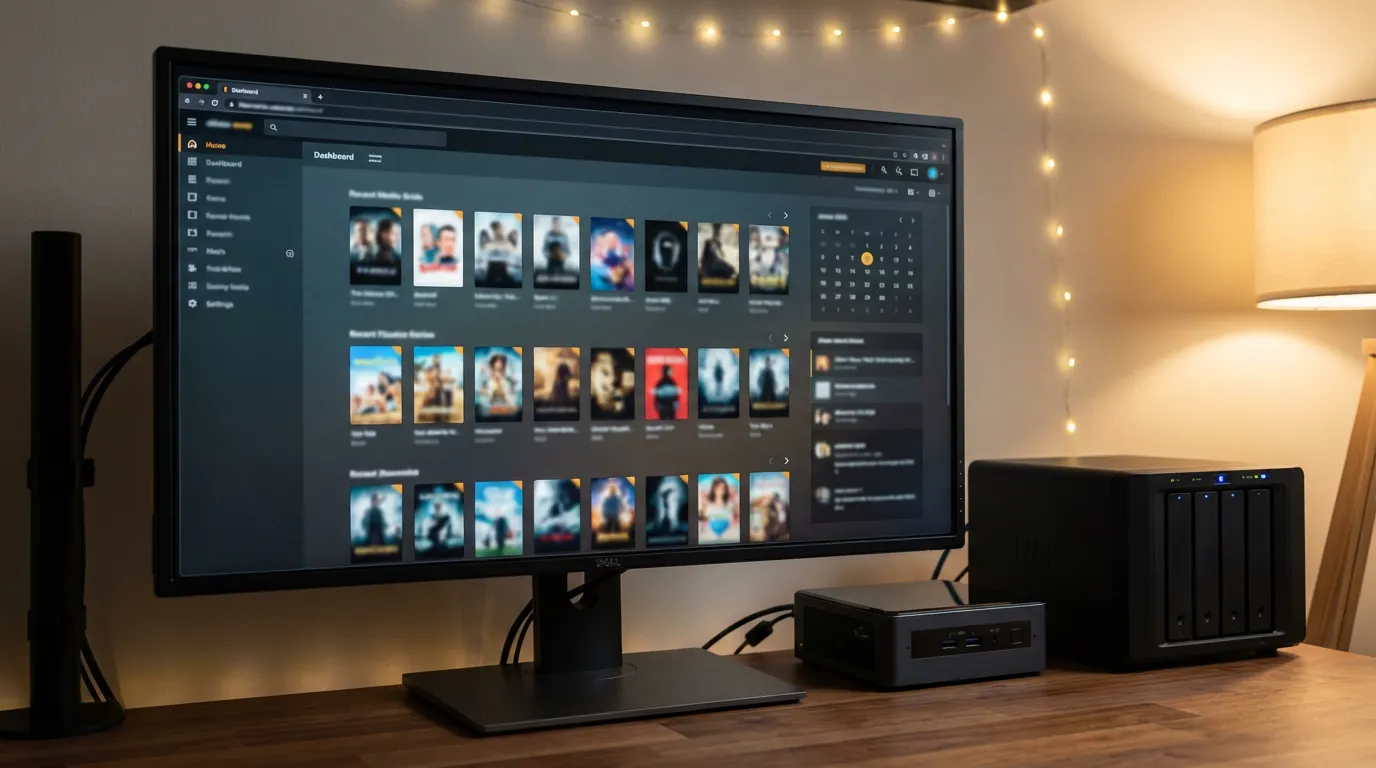
Adding media to your Plex server is only the beginning. Proper organization ensures you can find and enjoy your content effortlessly.
Start by categorizing your media into folders by type: Movies, TV Shows, Music, etc. Use consistent naming conventions for files, so Plex can automatically fetch metadata and cover art. For instance, name your movie files "Title (year).mkv" to assist Plex in identifying them correctly.
You can further enhance your viewing experience by incorporating preroll videos to add a cinematic touch before your media plays.
Conclusion
Setting up a Plex media server might seem daunting initially, but with the right guidance and tools, it becomes a manageable and rewarding project. From selecting the right hardware to optimizing your library, each step enhances your media consumption experience.
Whether you're using a powerful NAS, a budget-friendly Raspberry Pi, or exploring Docker, Plex offers a flexible and enjoyable way to organize and stream your media collection. For further enhancement, don't forget to check out our guide on Plex database migration fixes to ensure smooth transitions between upgrades.