Troubleshooting Plex Media Server Database Migration Issues
Understanding Plex Media Server Database Migration Errors
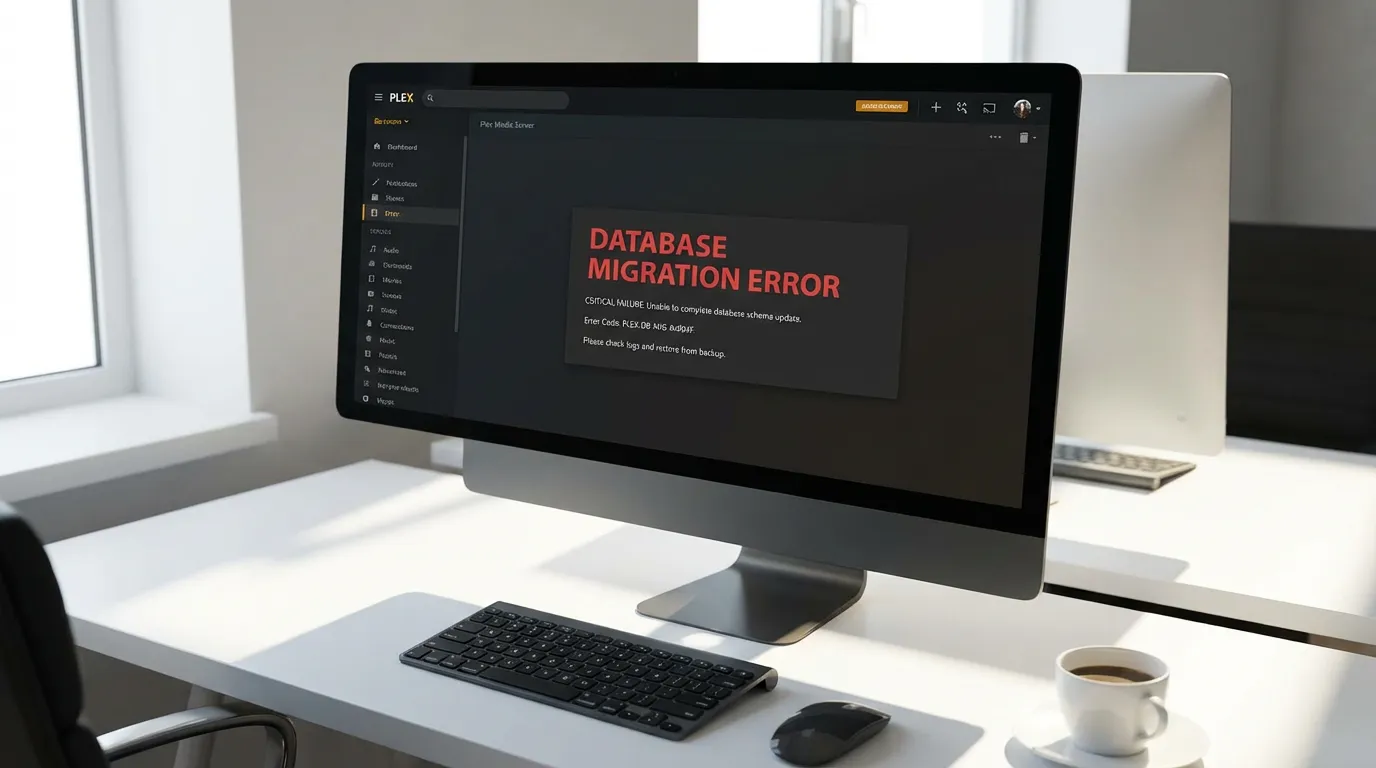
If you're using Plex Media Server, you might have encountered the error message: "Plex Media Server is currently running database migrations." This often comes with a response code 503, signaling maintenance mode. While this error is common, it can disrupt your streaming experience significantly. Let’s look at what causes this problem and how you can fix it.
What Causes This Error?
The error indicates that your Plex Media Server is undergoing a database migration process. This usually happens when your server updates its software or when there are changes in the database structure. Here are some typical causes:
- Software Updates: When Plex releases updates, your server might need to adjust its database structure, causing temporary disruptions.
- Database Corruption: A corrupt database can trigger continuous migration attempts, resulting in the 503 maintenance error.
Quick Fixes for Database Migration Errors
Before delving into advanced solutions, try these quick fixes to resolve the error:
Restarting the Plex Media Server
Sometimes, a simple restart can solve a multitude of issues. To restart your server, follow these steps:
- Open the Plex media server interface on your preferred web browser.
- Go to the settings menu and select "Server."
- Choose "Restart" and wait for the server to reload.
Checking Server Logs
Your server logs can provide valuable insights into the cause of the error. Here’s how you can check them:
- Navigate to the Plex Media Server data directory on your device.
- Look for the "Logs" folder and open the latest log files.
- Identify any error messages related to database migration.
Logs can help you determine if there's a deeper issue at play, such as database corruption.
Advanced Fixes: Repairing a Corrupt Database
If the quick fixes didn’t resolve your issue, you might need to take a more technical approach using SQLite tools to repair a corrupt database. Here’s a step-by-step guide:
Using SQLite to Repair the Database
SQLite is a powerful tool that can help you repair your Plex database. Follow these instructions:
- Download the SQLite database browser from a trusted source.
- Locate the
com.plexapp.plugins.library.dbfile in your Plex Media Server data directory. - Open the database file using the SQLite browser.
- Choose "Execute SQL" and run the command:
PRAGMA integrity_check;to identify corruption. - If issues are found, use
VACUUMto clean up and optimize the database.
Always ensure you back up your database before making any changes.
Prevention Tips for Future Protection
Preventing database migration errors can save you time and headaches. Here are some proactive measures:
Regular Backups
Maintain regular backups of your Plex database. This ensures you have a fallback if something goes wrong during a migration.
Monitoring and Alerts
Set up monitoring and alerts for your Plex Media Server. This can notify you of potential issues before they become serious problems.
Routine Updates
Keep your Plex Media Server software and plugins updated. This minimizes the risk of encountering compatibility issues during migrations.
By following these tips, you can reduce the likelihood of encountering database migration errors. For more Plex-related content, check out the Plex preroll section on our site.