HDMI ARC and eARC Setup Guide for Soundbars and Home Theaters
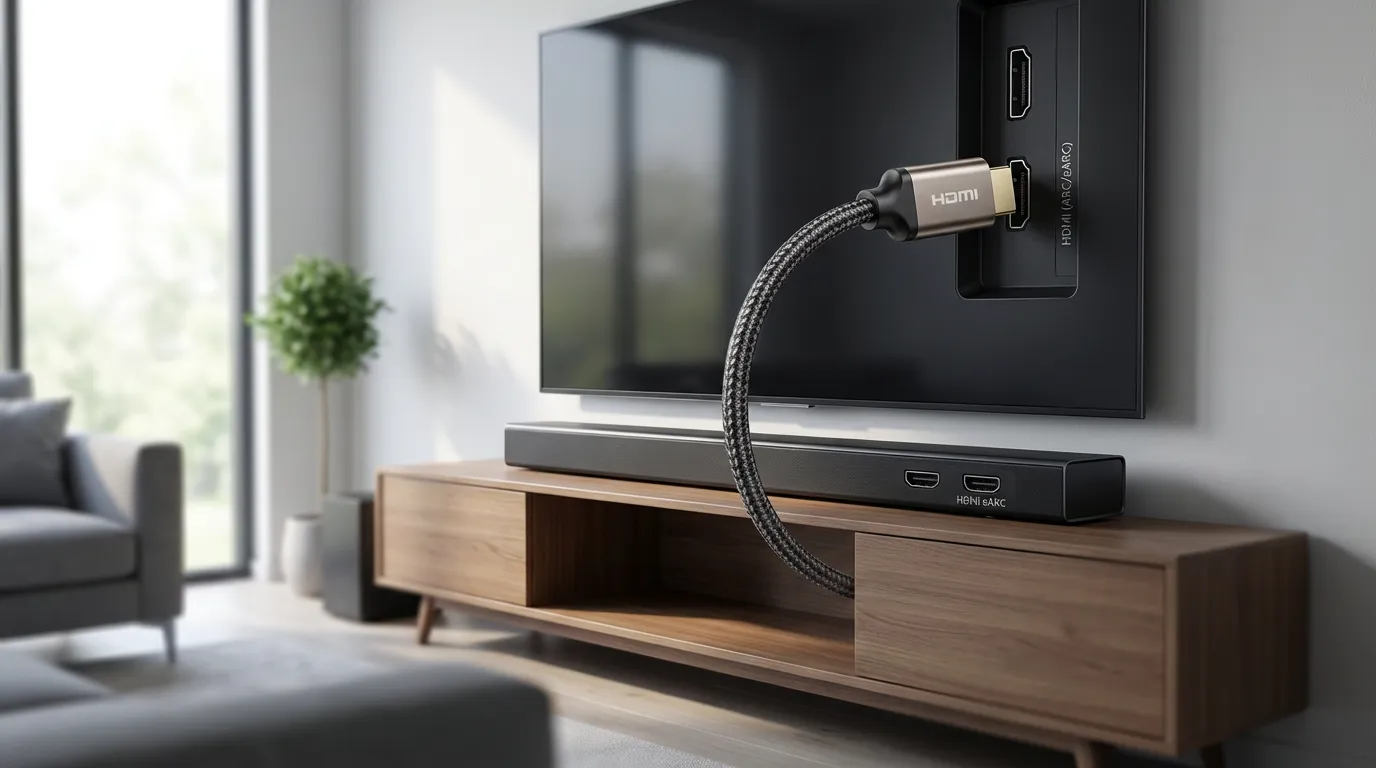
ARC and eARC sound simple on the box. One HDMI cable. TV audio goes “back” to your soundbar or receiver. You get one remote for volume. Life gets calmer.
Then you set it up and nothing happens. Or your soundbar plays stereo when you expected surround. Or dialogue lags behind mouths and it drives you a little nuts.
This guide is for that moment. I’ll walk you through what ARC and eARC do, how to set them up, what formats you can expect, and how to troubleshoot the stuff that makes you want to yank cables out of the wall.
What ARC and eARC do in plain language
HDMI was built to send video and audio from a source to a TV. ARC flips part of that path. It lets the TV send audio back down an HDMI port to a soundbar or AVR. That means your TV apps, antenna, and devices connected to the TV can all play through your external speakers without an extra optical cable.
eARC is the newer version. It keeps the same basic idea, but it raises the ceiling on audio quality and it tends to behave better. “Tends” is doing a lot of work there, but it helps.
Here is the mental model I use.
ARC is “TV audio return, with limits.” It can carry stereo and compressed surround, and it relies heavily on HDMI-CEC control signals to behave.
eARC is “TV audio return, with room to breathe.” It can carry higher bandwidth audio, including lossless formats, and it has its own data channel for audio discovery.
If you run a soundbar, ARC or eARC is often the cleanest setup. If you run an AVR with multiple sources, it can still be the cleanest setup, but you have more wiring choices and more ways to create a mess.
ARC vs eARC differences that matter day to day
Marketing makes this feel like a simple upgrade. In practice, the differences show up in three places: formats, reliability, and lip sync.
Audio format support and why you might care
ARC can handle stereo PCM and compressed surround formats. That covers a lot of streaming content, but it can block higher quality audio when your source can output it.
eARC can carry high-bitrate audio, including lossless formats, and it can pass multichannel PCM. If you have a Blu-ray player, a console, or a media box playing local files with high-quality audio tracks, eARC matters.
| Format | ARC | eARC |
|---|---|---|
| Stereo PCM | Yes | Yes |
| Multichannel PCM | Rare, often no | Yes |
| Dolby Digital | Yes | Yes |
| Dolby Digital Plus | Often yes | Yes |
| Dolby TrueHD | No | Yes |
| DTS formats | Depends on TV | Depends on TV and soundbar |
One annoying detail. Even with eARC, your TV might refuse to pass certain formats. Some TVs pass Dolby formats but block DTS. Some do the opposite. Some pass nothing beyond stereo from internal apps. Specs on paper do not protect you from brand decisions.
Control behavior and why CEC can make you angry
ARC often rides on CEC behavior. CEC is the “control everything with one remote” feature. It also creates weird power-on loops, volume control glitches, and input switching drama.
If you like one remote, you want CEC. If you like stability, you might end up treating CEC like a wild animal and keeping it on a short leash.
If you want a deeper handle on CEC quirks, this guide on controlling devices with one remote using HDMI-CEC pairs well with ARC troubleshooting.
Lip sync and the subtle ways audio can drift
Audio delay happens when the TV processes video and audio on different timelines. ARC setups can add another hop, which adds more delay. eARC includes features that help with lip sync, but real-world results still depend on firmware and the specific devices.
I wish I could say “eARC fixes it.” I cannot. It often improves it. It does not guarantee it.
What you need before you start
Save yourself time and gather this first.
A TV port labeled ARC or eARC. It is usually HDMI 2 or HDMI 3, but do not guess. Read the label on the TV.
A soundbar or AVR port labeled ARC or eARC. On soundbars, it is often HDMI OUT (TV-ARC/eARC).
A decent HDMI cable. For ARC, almost any High Speed HDMI cable works. For eARC, use a cable rated for higher bandwidth if you plan to pass lossless audio or you already have a cable that came with an eARC device. Cable quality matters more than people want to admit, but you do not need a luxury cable.
Access to TV audio settings. You will need to change output, digital audio format, and CEC toggles.
ARC setup steps for a TV and soundbar
This is the setup I recommend for most soundbar owners. It keeps wiring clean and it keeps the TV as the hub.
Step 1 connect the ARC ports to each other
Connect an HDMI cable from the TV HDMI port labeled ARC to the soundbar HDMI port labeled ARC or TV-ARC. Do not use a random HDMI port on the TV. If you do, you will get video but no return audio.
Step 2 enable CEC on the TV and the soundbar
On the TV, turn on HDMI-CEC. Brands use different names. You might see Anynet+, Bravia Sync, Simplink, VIERA Link, or something equally unhelpful. Turn it on.
On the soundbar or AVR, enable HDMI control or CEC.
ARC frequently does not wake up without CEC. I dislike this dependency, but fighting it wastes time.
Step 3 set TV audio output to external speakers
In TV audio settings, set the audio output to HDMI ARC, HDMI receiver, external speakers, or something similar. If you leave it on TV speakers, the TV might still send audio to the soundbar, but it might also keep playing through the TV. That is a fast path to echo.
Step 4 set digital audio format to pass-through when possible
Look for settings like Digital Audio Out, HDMI Audio Format, Bitstream, Auto, Pass-through. If you have a soundbar that supports surround, you want the TV to send bitstream or pass-through so the soundbar decodes it.
If you set PCM, the TV may downmix to stereo. Some TVs can output multichannel PCM, but many will not over ARC. PCM is still useful during troubleshooting. It removes format negotiation from the equation.
Step 5 verify with a known source
Test with a TV app you trust and a movie with clear surround cues. If your soundbar has an info button, check what it receives. Stereo vs Dolby Digital matters.
If you run a media server client on your TV or a streaming box, keep your test consistent. Swap sources one at a time so you know what changed.
eARC setup steps when you want higher audio quality
eARC setup looks like ARC setup, but you need to confirm one extra thing. You need eARC enabled on both ends.
Step 1 connect eARC ports and confirm the right input mode
Connect TV eARC to soundbar eARC. Then set the soundbar input to TV eARC or TV ARC. Some bars auto-detect, some do not. If it sits on HDMI 1 or Bluetooth, you will wait forever for sound that never arrives.
Step 2 enable eARC mode in TV settings
Many TVs have an eARC toggle. Turn it on. Some also let you choose ARC vs eARC. Pick eARC.
If your soundbar supports eARC but your TV only supports ARC, you can still use ARC. You just will not get the higher bandwidth benefits.
Step 3 set audio to pass-through and confirm format support
If you want lossless audio from an external player connected to the TV, set the TV to pass-through. Then confirm your soundbar supports the formats you plan to feed it. Plenty of soundbars support Dolby Atmos, but only in certain containers. Some accept Atmos via Dolby Digital Plus but not via TrueHD.
This is where expectations go to die. Read your soundbar manual for supported codecs and supported input paths. “Supports Atmos” does not mean “supports every way Atmos can show up.”
Wiring patterns that avoid pain
ARC and eARC are part of a bigger wiring choice. Where do you plug your devices. Into the TV or into the soundbar or AVR.
Pattern A plug everything into the TV then use ARC or eARC
This is the clean setup. Your TV becomes the switch. You plug your console, streamer, and disc player into the TV. The TV sends audio back to the soundbar over ARC or eARC.
Pros. Fewer cables running to the soundbar. TV remote controls inputs easily. eARC can pass high quality audio if the TV allows it.
Cons. Your TV might block formats. Your TV might add delay. Some TVs behave like gatekeepers and you cannot negotiate with them.
Pattern B plug sources into the soundbar or AVR then send video to the TV
This is the “let the audio device do the switching” approach. You plug sources into the soundbar or AVR HDMI inputs. Then run HDMI out to the TV.
Pros. Your soundbar or AVR controls audio formats directly, so you avoid TV pass-through limits. This can solve DTS or lossless issues fast.
Cons. Soundbars have limited HDMI inputs. Video features like VRR or high refresh modes might not pass through older soundbars. Input switching can feel clunky.
Pattern C use a streaming device for your apps and bypass TV app limits
If your TV apps output stereo or inconsistent surround, a dedicated streamer can help. Plug the streamer into the soundbar or into the TV depending on which device handles formats better.
If you are a media server person, you already think this way. You pick the playback device that behaves and you ignore the rest.
If you run Plex, Emby, or Jellyfin, keep your playback chain stable. A flaky HDMI handshake can look like a server issue when it is an audio negotiation issue. If you want to lean into the cinema vibe once your audio behaves, this guide on setting up Jellyfin prerolls and cinema mode is a fun way to make movie night feel intentional.
Compatibility issues that trip people up
Most ARC problems are not mysterious. They are mismatches. Here are the ones I see the most.
ARC works but you only get stereo
This usually comes from one of these.
TV audio output set to PCM. Switch to bitstream, auto, or pass-through.
TV app outputs stereo. Some apps do, some do not, and some change behavior based on account tier or content.
TV cannot pass the format your source outputs. Try changing the source audio output to Dolby Digital instead of Dolby Digital Plus, or to PCM for testing.
Soundbar input mode set wrong. Force it to TV ARC.
eARC is enabled but you still do not get lossless audio
Three common causes.
Your TV supports eARC but does not pass the format you want. This happens.
Your soundbar supports eARC but not the codec you are feeding it on that path.
Your source device is set to output something the chain cannot accept, so it falls back.
If you want a clean test, set your source to output bitstream and let the soundbar decode. If that fails, set the source to PCM and see if you get stable audio. That tells you if the issue is format negotiation or the physical link.
DTS confusion and the TV as a blocker
DTS support varies a lot. If you have a library with DTS tracks and your TV will not pass DTS over ARC or eARC, you have two practical options. Use a player that can transcode DTS to Dolby Digital, or route the player into the soundbar or AVR so the TV does not touch audio.
This is where home theater gets annoying. You can own devices that each support a format, yet the chain still fails because one device in the middle refuses to pass it.
ARC and eARC troubleshooting checklist for no sound
If you have no sound, do this in order. It feels slow. It is faster than random button mashing.
Confirm you used the correct HDMI ports
TV must use the port labeled ARC or eARC. Soundbar must use the port labeled ARC or eARC. If either side is wrong, you can get silence even though everything looks connected.
Power cycle in the right way
Turn off the TV and soundbar. Unplug both from power. Wait a minute. Plug the soundbar in first, then the TV. Power on the soundbar, then the TV.
This forces a fresh handshake. It fixes a surprising number of “it worked yesterday” problems.
Toggle CEC off and on
CEC can get stuck. Turn CEC off on the TV. Wait a few seconds. Turn it back on. Do the same on the soundbar if it has the option.
Set TV audio output to PCM as a test
Set the TV digital audio output to PCM. If you get sound, your physical link works. Then switch back to pass-through or bitstream and test again. If sound disappears, you have a format negotiation issue.
Try a different HDMI cable
I hate recommending this because it feels like superstition, but cables fail. Some cables “work” for video but fail for ARC behavior. Swap with a known good cable that you already trust.
Update firmware
ARC and eARC behavior lives in firmware. Update the TV and the soundbar. If you feel weird about updates, I get it. Still do it. Audio return bugs are common targets for fixes.
Fixing lip sync delay and audio lag
Lip sync problems feel personal. Your brain locks onto them and you cannot unsee them.
Start by disabling extra video processing
Turn off heavy video processing on the TV, like motion smoothing or cinematic interpolation modes. These add video delay. If the TV does not delay audio to match, you see lag.
If you game, enable Game Mode for that input. It reduces processing and can reduce lip sync drift.
Use the soundbar audio delay setting
Most soundbars have an audio delay or lip sync setting. Adjust it in small increments while watching dialogue. If the sound is late, reduce delay. If the sound is early, increase delay.
Some TVs also have an audio delay setting. Pick one place to adjust, not both. When you adjust both, you lose track of what fixed what.
Switch pass-through modes when delay feels inconsistent
Pass-through can reduce processing, but some TVs implement it in odd ways. If you get random drift, try switching between Auto and Pass-through. Pick the one that stays stable across your sources.
Fixing audio dropouts and random disconnects
Dropouts feel like the system is haunted. It plays fine, then it cuts out for a second, then it returns like nothing happened.
Stabilize CEC behavior
If your soundbar turns off when you switch inputs, or your TV keeps switching back to TV speakers, CEC could be fighting you. You can try these moves.
Disable device auto power off on one side if the menu allows it.
Disable auto input switching on the soundbar if available.
If you use a universal remote, consider disabling CEC and controlling power manually. This is less elegant, but it can stop the chaos.
Check for HDMI signal integrity issues
Long cable runs, tight bends, and cheap couplers can cause intermittent behavior. Keep the ARC cable as direct as possible. If you run cables through walls, use a quality cable rated for the distance.
Reduce format stress during testing
Set the TV audio output to PCM for a while. If dropouts stop, the issue might be a codec handshake or bitstream instability. Then move back to bitstream and see if the problem returns. It is boring, but it isolates the cause.
Audio quality benefits and what you will hear
People ask if eARC “sounds better.” It can. It depends on what you feed it.
If you mostly watch streaming services through TV apps, you might not hear a difference because the audio is often compressed. You still may get a better experience because eARC can be more stable and can handle more formats without downmixing.
If you play Blu-ray discs, high bitrate remux files, or local media with lossless tracks, eARC can be the difference between “it plays but something feels flat” and “this sounds like a room, not a speaker.” I keep coming back to that feeling. When lossless audio hits right, dialogue has shape and spaces feel like spaces.
If you run a media server and you care about playback quality, your player choice matters as much as ARC vs eARC. Some devices handle passthrough better than others. If you want a stable client device that people pair with serious audio setups, this NVIDIA Shield Pro setup guide is worth a look.
Quick settings map for common TV menus
Menu names vary, but the structure is similar. Look for these categories.
HDMI-CEC under External Inputs, Device Control, or HDMI Settings
eARC mode under Sound, Advanced Sound, or HDMI Audio
Digital audio out set to Auto, Bitstream, Pass-through, or PCM
Speaker selection set to Audio System, Receiver, or External Speakers
If you cannot find a setting, search within your TV settings for “ARC” or “eARC.” Many TVs have a search bar buried in settings now, and it can save your sanity.
When optical cable still makes sense
I like ARC and eARC when they behave. When they do not, optical can feel like a relief.
Optical can carry stereo and Dolby Digital. It cannot carry lossless formats and it cannot do advanced control features. Still, if you have constant ARC dropouts or CEC fights, optical gives you stable audio with fewer negotiations.
Think of it as the “I want sound, I do not want a relationship” option.
A practical sanity check for home theater builders
If you are building a setup around a soundbar, keep it simple. TV eARC to soundbar eARC. Sources into the TV unless your TV blocks formats you care about.
If you build around an AVR, you have more flexibility. You can route sources into the AVR and use one HDMI to the TV. You still might use eARC for TV apps, but the AVR can do the heavy lifting.
And if you care about movie night vibes, I love pairing stable audio with little touches that make your media server feel like a theater. If you want to browse preroll intros that work with Plex, Emby, and Jellyfin, you can start at the preroll browsing page and see what fits your style.
Fast FAQ for ARC and eARC
Do you need eARC for a soundbar
You need eARC if you want higher bandwidth audio formats from sources connected to your TV, and your TV passes them. If you watch streaming apps and your soundbar handles Dolby Digital Plus, ARC can be enough.
Can ARC work without CEC
Some setups work, many do not. ARC and CEC are tied together in a lot of devices. If ARC fails, turn CEC on during setup. Then test if you can disable parts of CEC behavior without breaking ARC.
Why does my TV keep switching back to TV speakers
CEC handshakes can fail at power-on. Power cycle both devices, then set speaker output to external audio again. If it keeps happening, update firmware and try a different HDMI cable.
Why does surround work on one app but not another
Apps output different formats. Some output stereo on certain titles. Some switch formats based on settings, bandwidth, or account tier. Test with the same title across devices if you want a fair comparison.
Is eARC backward compatible with ARC
Yes. If one device supports eARC and the other supports ARC, they fall back to ARC behavior.
If you set up ARC or eARC and it still feels unstable, do not assume you did something dumb. HDMI behavior can be moody. When you isolate the chain, change one setting at a time, and test with known content, you can usually get it to behave. It just asks for patience you did not plan to give it.