What Is NeXRoll for Plex and Jellyfin Preroll Scheduling
NeXRoll is one of those tools that makes you wonder why prerolls ever felt like a chore. If you run Plex or Jellyfin and you like cinema-style intros, studio bumpers, holiday clips, or “feature presentation” openers, you know the pain. You start with one video, then you add ten. Then you want Christmas clips in December, spooky clips in October, and something calm for weeknights. Suddenly you are juggling folders, naming hacks, and half-remembered settings.
NeXRoll takes that mess and puts it into a single place. You get a local web dashboard, a clean way to upload and tag prerolls, scheduling that works like a calendar, and controls that decide what plays when schedules overlap. It runs natively on Windows, and it can run in Docker too. It stays self-contained, and the installer gets you running fast without needing Python on the machine.
I like tools that respect your time. NeXRoll feels like it was built by someone who got tired of duct tape solutions and decided to make the “boring” parts pleasant.
What NeXRoll does in plain language
NeXRoll is a preroll manager for Plex and Jellyfin. You use it to:
- Store your preroll videos in one managed library
- Create categories and tags so you can group clips the way your brain works
- Build schedules that pick which category plays on which days
- Create sequences so multiple clips can play in an order you control
- Connect to Plex or Jellyfin so you can apply your choices with fewer steps
It is not a video editor. It will not create prerolls for you. It manages what you already have, plus it helps you pull from community prerolls if you want to grow your collection faster.
If you are still hunting for prerolls to try, you can browse a curated library at browse preroll videos by style and server type. It is a fast way to test ideas before you commit to building a full schedule.
Who NeXRoll is for
If you run Plex or Jellyfin for yourself, NeXRoll makes your setup cleaner. If you share your server with family or friends, it can make your server feel like a theater without you babysitting it. You can set the mood and then leave it alone.
NeXRoll fits you if any of these sound familiar:
- You want holiday prerolls without changing settings every week
- You want different intros for movies versus TV
- You want random variety, but you still want control
- You have a growing folder of prerolls and no naming scheme can save you
If you use Emby, NeXRoll does not target it. For Emby-focused preroll setup, start with Emby prerolls and cinema intros and then decide if you want a separate management workflow.
The interface you will live in
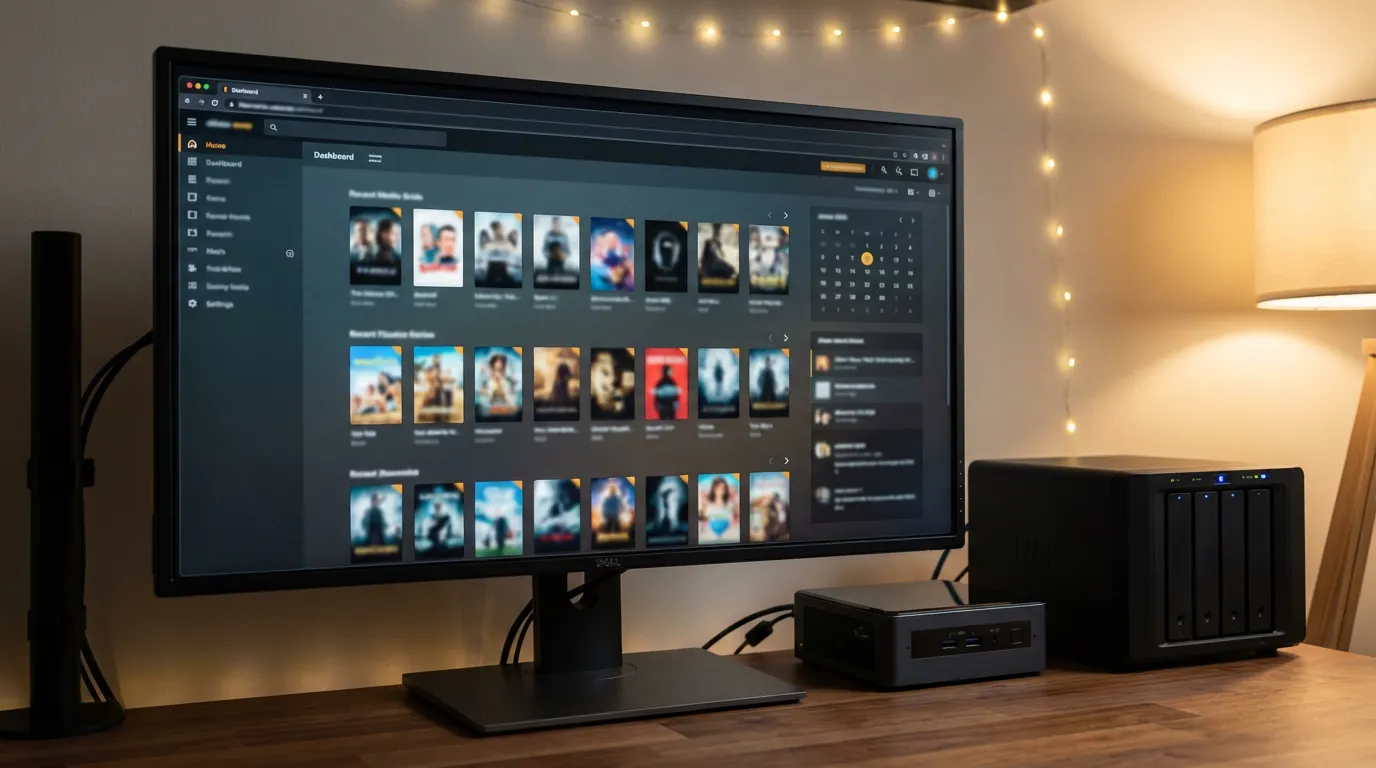
NeXRoll revolves around a web UI that runs locally. After install, you open http://localhost:9393 and do your work there. The UI is the point. It is where you upload, tag, schedule, and monitor server connections.
These are the screens you will see and what they mean in real use.
Dashboard view
The dashboard is your status board. You see what NeXRoll is doing, whether your media server connection is healthy, and quick paths into the parts you touch most. This is where you confirm “yes, it is running” before you start blaming your server or your network.
Preroll management view
This is your library. You upload videos, NeXRoll generates thumbnails, and you organize clips with tags and category assignments. The thumbnail piece matters more than it sounds. Once you have a few dozen clips, you stop remembering filenames. You start recognizing visuals. A good thumbnail system turns your preroll library into something you can scan fast.
Schedule management view
Scheduling is where NeXRoll earns its keep. You create schedules with recurrence patterns, assign categories, define fallback behavior, and decide how overlaps behave. You can run a schedule that repeats weekly, monthly, yearly, or on custom patterns.
Calendar year view
The year view is for sanity. I have set up prerolls in the past where I thought I had it covered, then I hit a weird overlap and the wrong vibe played for a week. The calendar view makes it harder to fool yourself. You can see how your schedules stack across the year and catch collisions before they annoy you.
Community prerolls view
NeXRoll can browse and download from a community catalog at prerolls.uk with a large library of shared clips. This is where you go when you want variety fast. It is also where you go when you want “seasonal” without spending an afternoon in a video editor.
Main features that matter when you run it daily
Feature lists can feel like noise, so here is what each feature changes for you once you start using NeXRoll every week.
Preroll management with tags and multi-category assignments
You can upload videos, let NeXRoll generate thumbnails, and then assign tags and categories. The multi-category part is the quiet win. One clip can fit multiple moods. A “feature presentation” bumper can belong to a general category, a “weekend movie night” category, and a “family friendly” category. You do not need duplicates on disk to make that work.
If you want to build your own clips, you may like how to create your own preroll videos. It pairs well with NeXRoll because you can design a small set of clips and then let schedules do the rest.
Smart scheduling with visual calendar views
NeXRoll supports daily, weekly, monthly, and yearly schedules. You can set recurrence patterns, attach categories, and define fallbacks. That last part matters. If a schedule points to a category that has no clips, you do not want playback to break or go silent. A fallback category keeps the experience consistent.
Scheduling is where you can get picky without turning your setup into a second job. You can run a calm weekday intro category, then switch to louder, longer sequences on Friday night, then use a short bumper for TV episodes. You can do that with rules instead of manual changes.
Sequence builder for ordered preroll chains
Sometimes you want one clip, not five. Sometimes you want a chain. NeXRoll lets you build sequences that play in a set order. It also supports random blocks and fixed selections.
This is where you can create a “theater pack” feel. For example, you might want:
- A short “silence your phone” PSA
- A random studio bumper
- A fixed “feature presentation” opener
You can make that a sequence and treat it like a single unit in your schedule. It is controlled chaos. The kind you want.
Schedule blend mode for overlapping seasons
Overlaps are where a lot of preroll setups fall apart. Think Christmas and New Year’s. Or Halloween week plus a “Friday night” rule. NeXRoll can blend prerolls from overlapping schedules so you get a mix instead of one schedule stomping the other.
I have mixed feelings about blend modes in general. They can create magic, and they can also create confusion when you forget you turned blending on. NeXRoll makes it visible, which helps. Still, if you want strict control, use priority and exclusive mode instead.
Priority and exclusive mode for schedule control
NeXRoll gives schedules priority levels from 1 to 10. Higher priority wins. Exclusive mode overrides overlaps when you want one schedule to take over completely.
This is the feature that saves you from “holiday chaos.” If you want Christmas prerolls to override your weekend movie night, set Christmas to higher priority. If you want a one-day event to take over fully, set it to exclusive. You stop guessing what will play.
Holiday browser and built-in holiday presets
NeXRoll can search holidays from over a hundred countries, then create schedules with one action. It also includes dozens of built-in holiday presets that can create categories and schedules for you.
This is one of those features that feels almost suspiciously helpful. Holiday scheduling is annoying because it is calendar work, not media work. NeXRoll treats it like a normal task, and that lowers the barrier to doing it “right.”
Community prerolls built into the workflow
NeXRoll can browse a large community catalog and download clips inside the app. That changes your behavior. You stop hoarding random files in a folder “for later.” You can grab a few, tag them, drop them into a category, and move on.
If you want a curated starting point outside NeXRoll, you can also browse here. For example, Plex-focused intros like Feature Presentation Plex preroll can help you set a baseline style before you build schedules around it.
Media server integration with status and quick apply
NeXRoll connects to Plex or Jellyfin using your server URL and credentials. For Plex, you can use a token, and there is a helper tool to obtain a stable token.
Connection status matters because it stops you from debugging the wrong thing. If prerolls do not play, you want to know if the schedule is wrong, the server connection is down, or the server cannot reach the file path you chose.
If you are still setting up prerolls on Jellyfin, this guide helps you understand how the server expects prerolls to behave before you layer in management tools like NeXRoll. See Jellyfin prerolls and cinema mode setup.
Backup and restore that respects your time
NeXRoll supports full database and file backups with one-click restore. Preroll setups grow over time. You add categories, tune schedules, build sequences, then forget how much work that was. Backups protect you from the day you reinstall Windows, migrate drives, or break something while “cleaning up.”
Windows native install with optional service and tray app
NeXRoll runs as a packaged app on Windows. You can also install it as a Windows Service, and you can use a tray app for quick actions. This gives you two styles of operation.
- If you want it always on, use the service
- If you want a portable feel, run the app directly
I like having both. Services are stable, but sometimes you want to stop the app fast, test something, and start again without opening Services.msc.
How NeXRoll installs on Windows
NeXRoll ships as a single installer. That matters because preroll tools can spiral into dependency mess. NeXRoll avoids that. No Python needed on user machines. You install and go.
Download and install steps
- Download the latest NeXroll_Installer.exe from GitHub Releases.
- Run NeXroll_Installer.exe. Administrator is recommended.
- Pick an install location. The default is C:\Program Files\NeXroll.
- Pick a preroll storage directory. You can put it on any drive.
- Select optional components you want.
- Finish the installer, then open NeXRoll from the Start Menu or tray menu.
- Open http://localhost:9393 in your browser.
Optional components worth thinking about
| Component | Why you might want it |
|---|---|
| Install as Windows Service (NeXrollService) | Runs in the background without you logging in. Helps on headless boxes and always-on servers. |
| Plex Stable Token setup | Creates a long-lived token so your Plex connection does not break after auth changes. |
| Start with Windows (tray app) | Gives you quick controls without hunting for the app. Handy if you tweak schedules a lot. |
| Install FFmpeg via winget | Needed for thumbnail generation. If you skip it, you may lose the visual browsing experience. |
| Windows Firewall rule for TCP 9393 | Helps if you access the UI from another device on your LAN. For local-only use, it matters less. |
What gets installed and where your data lives
NeXRoll installs a few key executables and keeps logs and the database under ProgramData. I like that layout. It matches how Windows software should behave.
Installed executables
- NeXroll.exe the web application, built with FastAPI and a bundled frontend
- NeXrollService.exe optional Windows Service wrapper
- NeXrollTray.exe tray app with quick actions
- setup_plex_token.exe helper to obtain a stable Plex token
Shortcuts created
- Start Menu shortcuts for NeXroll, NeXroll Tray, and Uninstall NeXroll
- A desktop shortcut for NeXroll
Logs and database locations
- Service logs at %ProgramData%\NeXroll\logs\service.log
- Packaged app logs at %ProgramData%\NeXroll\logs\app.log
- Tray logs at %ProgramData%\NeXroll\logs\tray.log
- Database at %ProgramData%\NeXroll\nexroll.db
One detail I appreciate is that uninstall does not delete your preroll storage directory. That is respectful. Your video library should not vanish because you tested a tool.
System tray app actions you will use
The tray app is small, but it saves time. It gives you quick actions without digging into Windows services or searching the Start Menu.
- Open launches http://localhost:9393
- Start Service starts the Windows service if installed
- Stop Service stops the Windows service if installed
- Restart Service restarts the Windows service if installed
- Start App (portable) runs the packaged app without the service
- Check for updates checks GitHub Releases and opens the latest release if there is a newer version
- About shows app information
- GitHub opens the project page
- Exit closes the tray app
If you select Start with Windows, the tray app launches at login. That is convenient, but you should still decide if you want service mode. Tray startup depends on a user session. Service mode does not.
Windows Service mode and how to control it
If you install NeXRoll as a service, you can control it through Services.msc, or use commands from your install directory.
Service commands
Run these from C:\Program Files\NeXroll or your chosen install directory.
NeXrollService.exe install
NeXrollService.exe start
NeXrollService.exe stop
NeXrollService.exe remove
One small gotcha. If another NeXRoll instance still holds port 9393, the service start can fail. Close the running NeXroll.exe, then start the service again. It sounds obvious, but you will forget once, and then you will remember forever.
Requirements you should confirm before you blame NeXRoll
- Windows 10 or 11 x64
- FFmpeg for thumbnail generation
- Network access to your Plex or Jellyfin server
- No Python required on user machines
FFmpeg matters if you care about thumbnails. If you skip it, you can still manage prerolls, but browsing feels less human. Your eyes want a grid of images, not filenames.
First time setup workflow that keeps you sane
Here is the setup flow that tends to avoid mistakes.
Connect to Plex or Jellyfin
Open http://localhost:9393, then connect to your server using its URL and credentials.
- For Plex, use your Plex URL and token
- If your token situation feels fragile, run setup_plex_token.exe to create a stable token
Pick a preroll storage directory you will not regret
Put prerolls on a drive and path that will not change. If you later move the folder, you create work for yourself. If you run Plex or Jellyfin on another machine, think through file access. The server needs to reach the media path you configure.
Upload prerolls and build categories
Start small. Create categories that match how you watch.
- Movies
- TV
- Holidays
- Kids
Then add tags that describe vibe and length, like “short,” “quiet,” “loud,” “studio,” “retro.” Tags help later when your library grows and you cannot remember what you named things.
Create schedules before you create complex sequences
Schedules give you structure. Sequences add flavor. If you start with sequences, you may spend time polishing something you do not even want playing on weekdays.
Once schedules feel right, build one or two sequences for your main use case. For example, a weekend movie night sequence. Then stop. Live with it. Your future self will thank you.
Upgrade and uninstall behavior you should know
Upgrading NeXRoll
You upgrade by running the newer NeXroll_Installer.exe over the existing installation. Your preroll storage path stays the same, and your data stays in place.
Uninstalling NeXRoll
Use Uninstall NeXroll from the Start Menu or Apps and Features. The uninstall removes the service and shortcuts. It does not delete your preroll storage directory. That is the right call.
Common troubleshooting that saves you an hour
Preroll setups fail in predictable ways. Here are the ones you will hit.
Service did not respond in time
Check whether another process uses port 9393. If NeXroll.exe is already running, stop it, then start the service again.
UI not reachable at http://localhost:9393
If you selected the firewall component, confirm the inbound rule exists for TCP 9393. If you did not, allow inbound TCP 9393 or rerun the installer and select the firewall option.
Thumbnails not created
Install FFmpeg, then re-upload a preroll. NeXRoll needs FFmpeg to grab frames and generate thumbnails.
Tray icon not shown
Run NeXroll Tray from the Start Menu. Pin it so Windows keeps it visible. Windows loves hiding tray icons and pretending it is helping you.
Media server connection issues
Confirm your Plex or Jellyfin server is reachable from the machine running NeXRoll. Then verify credentials. For Plex, rerun setup_plex_token.exe if your token seems unstable.
How to think about preroll scheduling without overthinking it
NeXRoll gives you a lot of control. That is a gift and a trap. You can spend hours tuning rules that nobody notices. Or you can set a few schedules that match real life and walk away.
Here is a sane approach:
- Use one default category that always has clips
- Add one schedule per season or holiday you care about
- Use priority to keep holiday content from clashing with your normal rules
- Use one sequence for movie nights, and keep it short
If you want a fast “starter pack” of prerolls, pick a couple that fit your server vibe. For Plex, the Universal Plex preroll style works as a neutral baseline. Then you can layer in themed clips later without turning your library into noise.
Building from source and what that tells you
You do not need to build NeXRoll from source to use it. Still, I like that the project documents packaging and structure. It signals that the author expects others to understand and contribute, not treat it as a black box.
The backend uses FastAPI, and the frontend is served as a static build by the backend. The Windows packaging uses PyInstaller specs and an NSIS installer. That is a practical stack. It is not glamorous, but it tends to ship.
Is NeXRoll worth using for Plex and Jellyfin prerolls
If you play one preroll clip forever, you do not need a manager. If you care about mood, seasons, and variety, NeXRoll starts to feel hard to live without.
What sticks with me is how it respects the reality of media servers. Your setup grows. Your tastes change. Your family gets tired of the same intro. Schedules, sequences, and priorities let you adapt without turning prerolls into a weekly maintenance task.
NeXRoll is not magic. You still need to pick clips that do not annoy you after the tenth play. You still need to keep your categories clean. But it turns prerolls from a folder of files into a system you can control with confidence.
If you want help picking clips that match your server, start at Prerolls.me preroll videos for Plex, Emby, and Jellyfin and build a small library. Then let NeXRoll handle the calendar work.