How to Control All Your Devices with One Remote Using HDMI CEC
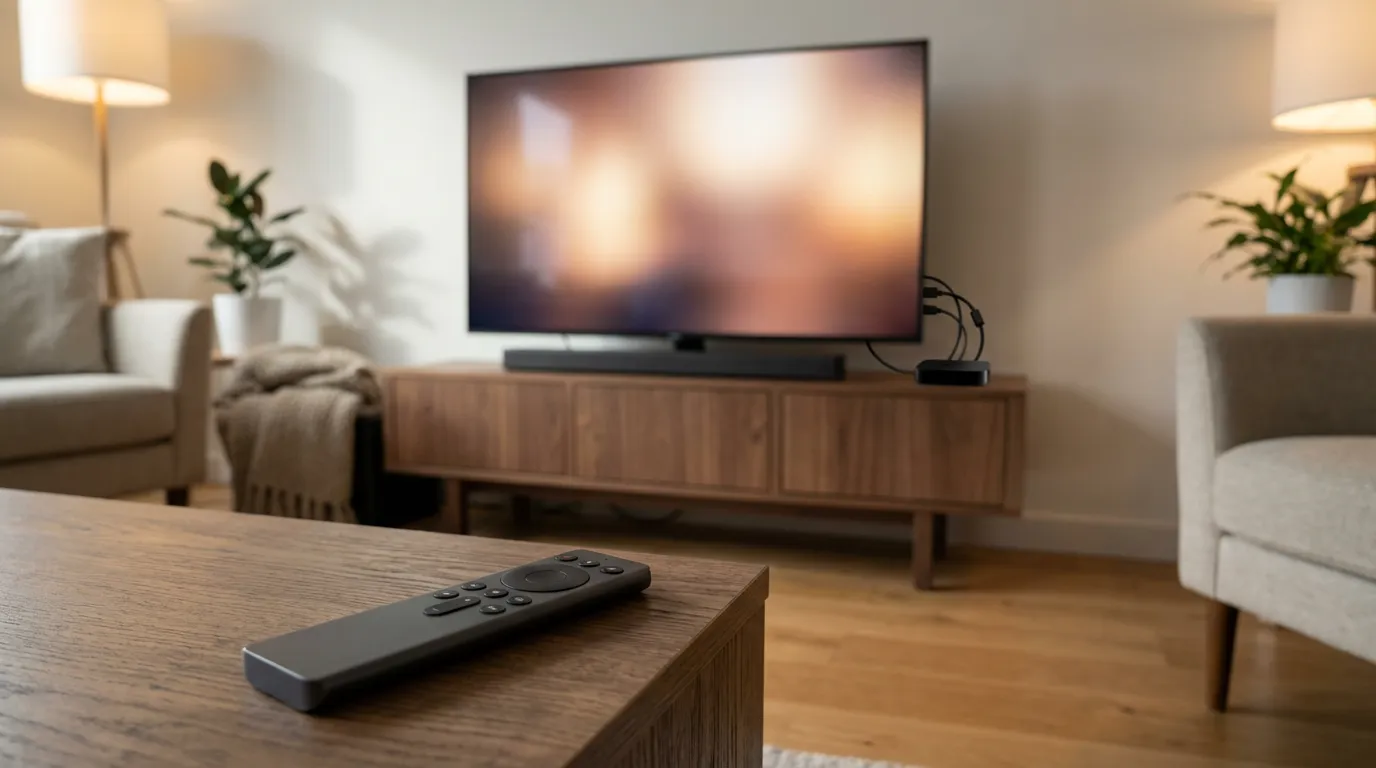
You bought a TV. Then a soundbar. Then a streaming box. Then a game console. Now your coffee table looks like a remote control parking lot. I have been there. You sit down to watch something, press the wrong button, the TV jumps to a different input, and your soundbar decides it lives on mute now.
There is a feature built into HDMI that can clean up a lot of that mess. It is called Consumer Electronics Control. Most people call it HDMI CEC. When it works, you can control multiple devices with one remote. Power, volume, input switching, and basic playback controls can all run through your TV remote or your streamer remote.
It is not magic. It is also not perfect. Some brands behave like polite roommates. Others behave like they want to win custody of your living room. Still, when you set it up with a plan, HDMI CEC can cut your remote count down fast.
What HDMI CEC does and why it feels like magic
HDMI carries video and audio between devices. CEC adds a control channel over the same cable. That control channel lets devices send commands like:
- Turn the TV on when your streamer wakes up
- Switch the TV to the right HDMI input when you press Home on a device
- Control soundbar volume using the TV remote
- Pause and play a Blu-ray player from the TV remote
- Put devices to sleep when you turn the TV off
The dream setup looks like this. You press one button on one remote. Your TV powers on. Your receiver or soundbar wakes up. The TV flips to the right input. Your Plex or Jellyfin client appears. You hit play. You do not think about HDMI ports again.
That is the upside. The downside is that CEC is a standard with wiggle room. Brands interpret parts of it in their own way. Devices also fight for control. You might love it one night and want to throw it out the next. Both reactions make sense.
CEC brand names you have seen but maybe ignored
Manufacturers rarely label it “CEC” in the menu. They slap a friendly name on it and hope you do not notice it is the same feature.
| Brand | Common menu name |
|---|---|
| Samsung | Anynet+ |
| LG | SIMPLINK |
| Sony | BRAVIA Sync |
| Panasonic | VIERA Link |
| Philips | EasyLink |
| TCL | T-Link or HDMI CEC |
| Hisense | HDMI CEC |
| Vizio | CEC |
If you cannot find it, search your TV settings for “CEC,” “device control,” “HDMI control,” or the brand name above.
What you can control with one remote and what you cannot
CEC shines when you want basic living room actions to feel consistent.
Stuff CEC handles well
- Power sync. Turning on one device wakes the TV and audio gear.
- Input switching. A device can request the TV input it lives on.
- Volume control. TV remote changes soundbar or receiver volume through ARC or eARC.
- Basic playback. Play, pause, skip on some devices.
Stuff CEC struggles with
- Complex receiver control. Sound modes, inputs, and advanced settings often need the receiver remote.
- Consistent behavior across brands. One brand might power off everything. Another leaves the streamer on.
- Multiple playback devices. Two streamers and a console can start a control tug-of-war.
If you want one remote to control every feature across every box, CEC will not fully get you there. A universal remote can. But CEC can still remove a lot of day-to-day friction, even if you keep a second remote in a drawer.
Hardware setup that makes CEC behave
CEC relies on HDMI handshakes. That means your physical wiring matters more than people admit.
Use direct HDMI connections when you can
Connect each device straight to the TV if your TV has enough ports. The fewer switches in the chain, the fewer weird moments you get.
If you use an AV receiver, connect devices to the receiver, then one HDMI cable from receiver to TV. That can work well, but it adds another device that can send CEC commands. Receivers love to “help.” Sometimes that help feels like sabotage.
Use the ARC or eARC port for soundbars and receivers
If you want your TV remote to control volume on a soundbar or receiver, you need ARC or eARC between the TV and that audio device. Plug the audio device into the TV HDMI port labeled ARC or eARC. Then enable ARC or eARC in both menus.
Do not assume every HDMI cable behaves the same
You do not need a premium cable for CEC, but you do need a cable that is not damaged and not flaky. If CEC works for an hour and then stops, swap cables before you spend a weekend yelling at menus.
Step by step HDMI CEC setup that works in most homes
Here is the order I use when I want CEC to work and stay working.
Step 1 turn CEC on for the TV
Find the CEC setting on your TV and enable it. Some TVs also have sub-options like “Auto power on,” “Auto power off,” and “Device search.” Turn those on too, at least for setup.
Step 2 enable HDMI control on your streamer and console
Open your streaming device settings and enable HDMI device control. Most streamers also let you pick whether it can turn the TV on, turn the TV off, or switch inputs. Decide what you want. If you hate surprise power-offs, disable the “turn off TV” option and keep “turn on TV” enabled.
Step 3 set up ARC or eARC for audio control
Enable ARC or eARC on the TV and on the soundbar or receiver. Then set your TV audio output to external speakers. If your TV has a “digital audio out” option, start with Auto or Pass-through. You can fine-tune later.
Step 4 power cycle everything
This part feels silly. It also fixes a lot. Turn everything off. Unplug the TV and audio device for a minute. Plug them back in. Then turn on the TV first, then the audio device, then the streamer.
Step 5 run device discovery on the TV
Many TVs have a “Device list” or “Device discovery” screen. Run it. Make sure your streamer and audio device show up. If the TV does not see them, CEC will act like it is on but do nothing useful.
Brand by brand setup notes that save time
I cannot cover every menu variation, but I can tell you where these brands tend to hide the settings and what they get wrong.
Samsung TV Anynet+ behavior
Samsung usually places Anynet+ under External Device Manager. Samsung TVs can get aggressive with auto input switching. If your TV jumps inputs when you wake a console, disable auto switching and keep power control.
LG TV SIMPLINK behavior
LG puts SIMPLINK under General or Connection settings. LG tends to behave well with soundbars over ARC or eARC. If your soundbar volume does not respond, check that LG set audio output to HDMI ARC and not internal speakers.
Sony TV BRAVIA Sync behavior
Sony calls it BRAVIA Sync and usually includes a device list screen. Sony TVs can “remember” stale devices. If you swapped hardware, clear the BRAVIA Sync device list and rescan.
TCL and Hisense behavior
These brands often show HDMI CEC settings in a simple toggle list. That is nice. The downside is that some models ship with CEC off by default. Turn it on, then look for separate toggles for power and input switching.
Common HDMI CEC problems and how to fix them
CEC issues feel random because the failure can come from any device in the chain. Treat it like a group chat where one person keeps muting the conversation.
The TV turns on but the soundbar stays off
- Confirm the soundbar connects to the TV ARC or eARC port.
- Enable HDMI control on the soundbar.
- Enable ARC or eARC on both devices.
- Power cycle both devices and rescan devices on the TV.
Volume control works but power control does not
That points to partial CEC support or a disabled power toggle on one device. Many streamers let you enable volume control without enabling power control. Check the streamer HDMI device control settings and enable “power on TV.”
The TV keeps switching inputs by itself
This is the CEC complaint I hear most. It feels haunted. The fix is boring.
- Disable input switching on the noisiest device. Game consoles cause this a lot.
- Disable “auto wake” or “wake on network” on devices that like to wake up in the background.
- If your TV has a “last used input” startup option, enable it.
CEC worked and then stopped after you changed one cable
CEC handshakes can break when you add or remove devices. Power cycle everything. If that fails, unplug all HDMI cables, plug in the TV to soundbar ARC link first, then add devices one at a time.
One remote controls the wrong device
CEC routes commands based on what the TV thinks is active. If your TV thinks the Blu-ray player is active, your play and pause buttons go there. Switch the TV to the input you want, then try again. If the TV keeps picking the wrong active source, disable CEC on the device you do not want controlled, or disable its ability to request active source.
Your universal remote fights with CEC
This one gets messy. Universal remotes send IR, Bluetooth, or network commands. CEC sends commands over HDMI. If both systems try to manage power and inputs, you get double presses and surprise state changes.
Pick a boss.
- If you love your universal remote macros, disable CEC power and input switching. Keep ARC volume control if you want.
- If you want the TV remote to run the show, disable universal remote macros and keep it for advanced receiver controls.
How to build a one remote setup for streamers and media servers
If you run Plex, Emby, or Jellyfin, you care about consistent playback more than fancy TV features. You want the play button to behave the same way every time. CEC can help, but you need to decide which remote you want in your hand.
Option A use the streamer remote as your main remote
This is my favorite for media server users. Streamer remotes feel fast. They control playback well. If you enable HDMI device control on the streamer, pressing Home wakes the TV and switches inputs. Volume can still go to your soundbar through ARC or eARC.
If you want a smooth Plex client experience on living room hardware, it also helps to pick a streamer that behaves well with CEC. For device ideas and setup tips, you can compare platform behavior in guides like Plex setup on Apple TV, Roku, and smart TVs.
Option B use the TV remote as your main remote
This works well when you use built-in TV apps or when you want one remote that feels familiar for guests. Enable CEC and ARC. Then let the TV remote control the soundbar volume and basic playback on your active device. It is not as tight as a streamer remote for app navigation, but it is easy to explain to other people.
Option C use a universal remote with CEC in a supporting role
If you already own a universal remote, you can still keep CEC for one job. Volume over ARC. That is the sweet spot. Let your universal remote handle activities. Let CEC keep audio control stable.
Max convenience tweaks that people skip
Once CEC works, you can make it feel less fragile.
Decide what turns the system off
Power off behavior is where CEC gets emotional. Some people want one button to shut everything down. Others hate it because a child turns off the TV and the media server client stops mid-stream in another room.
My take. Let one device power on the chain. Do not let every device power off the chain. Pick one “off” button, then disable CEC power off on anything that tends to go to sleep on its own.
Turn off CEC on devices you barely use
That old Blu-ray player you use twice a year can still blast CEC commands. If it causes input switching, disable CEC on it. You can still use it with its own remote when you need it.
Use the TV input labels and device manager
Label your HDMI inputs. It sounds cosmetic, but it changes your troubleshooting life. When the TV says “Game Console” instead of “HDMI 3,” you spot wrong input switches faster.
Update firmware when CEC acts weird
I do not love telling people to update firmware as a cure-all. It feels like a tech support reflex. Still, CEC bugs show up in firmware more than in hardware. If CEC breaks after a device update, check if another update exists for the TV or soundbar.
When CEC is not enough and what to do instead
CEC gives you convenience, but it does not give you total control. If you need consistent power states, reliable input switching, and full receiver control, a universal remote system can beat it. It costs more. It also feels calmer when you press one button and the room obeys.
Still, I keep coming back to CEC because it is already in your gear. No extra hubs. No programming sessions that turn into a weekend project.
Make your home theater feel like a theater
Once you get down to one remote, you start noticing a different problem. Your setup works, but it does not feel like an event. That is where cinema mode and prerolls come in. If you run a media server, a short intro before your movie can make your living room feel more intentional.
If you want that vibe, you can browse intros and cinema-style clips at the preroll video library. If you want to set it up inside your server, start with Jellyfin cinema mode and prerolls setup. It is one of those changes that feels a little silly until you try it, then it sticks.
A quick CEC checklist you can run in five minutes
- Enable CEC on the TV
- Enable HDMI device control on the streamer
- Connect soundbar or receiver to the ARC or eARC HDMI port
- Enable ARC or eARC on both TV and audio device
- Disable input switching on devices that keep stealing focus
- Power cycle the chain and rescan devices
If you do those steps and it still behaves like a prank, do one more thing. Disconnect every HDMI device except the soundbar or receiver. Confirm ARC volume control works. Then add devices back one at a time. It is slow. It is also the cleanest way to find the troublemaker.
When it clicks, it feels like you finally got your living room back. One remote. One button to start the night. That is the goal.