Plex on Apple TV, Roku & Smart TVs: Complete Setup Guide
Getting Started with Plex on Apple TV
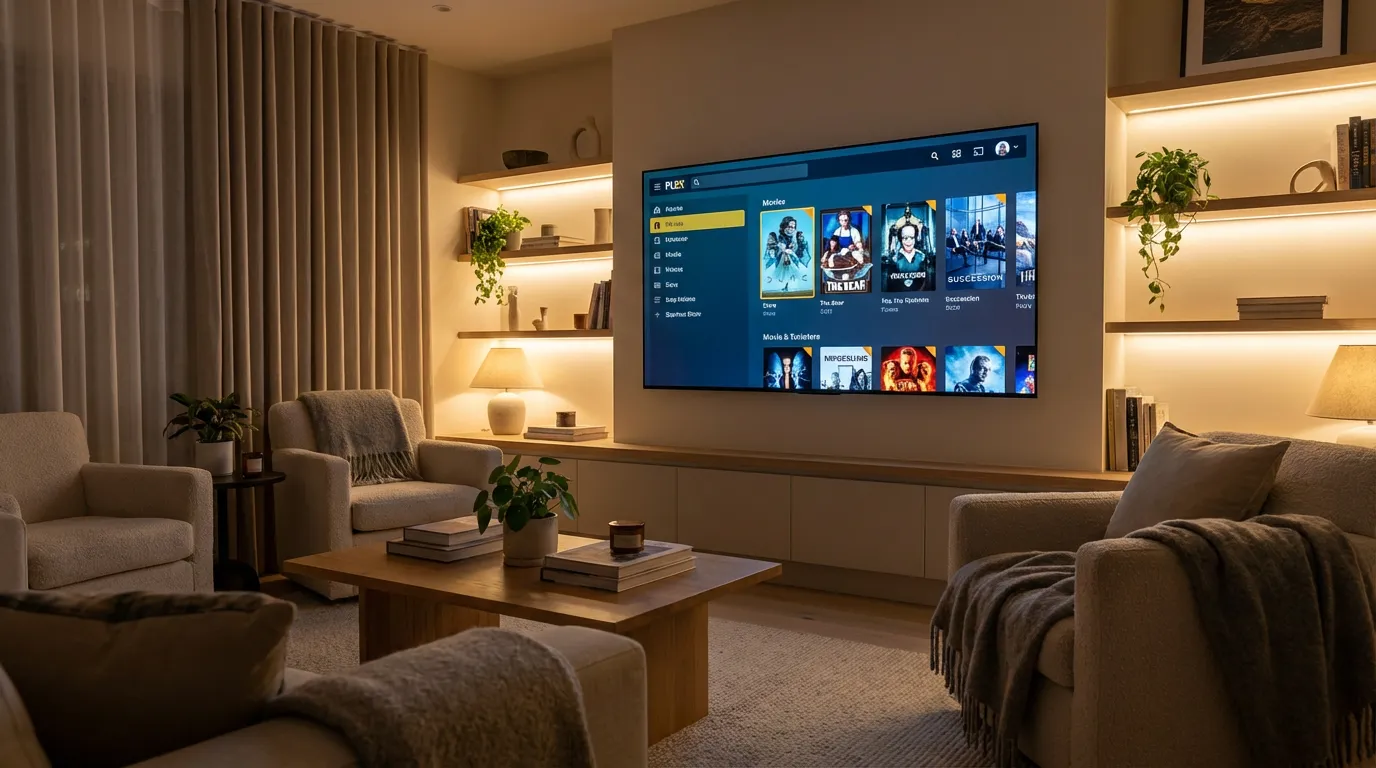
Setting up Plex on your Apple TV is surprisingly straightforward. The Apple TV interface is streamlined for ease of use, making it a popular choice among media enthusiasts. To start, you need to download the Plex app from the App Store. Once installed, open the app and sign in with your Plex account details. If you don't have an account yet, you can create one on the Plex website. After signing in, the app will detect your Plex server if it's on the same network. If not, you may need to enter the server's IP address manually.
Optimizing Your Experience on Apple TV
The Apple TV 4K offers a stellar viewing experience, supporting 4K HDR content for those with a compatible TV. Ensure your media files are correctly named and organized so Plex can easily index them. Learn more about organizing your media files in our guide on organizing Plex media files.
Remote Control Tips
The Siri Remote included with the Apple TV can also control volume and presentation settings, which is handy. You can use the Siri feature to search for specific titles or genres, making navigation seamless. For those who prefer traditional methods, you can connect a universal remote for ease.
Troubleshooting Common Issues
Sometimes, you might encounter issues such as buffering or app crashing. Ensure your Apple TV software is up to date. Additionally, check your Plex server's health. You may want to review our Plex troubleshooting guide for more tips on resolving common issues.
Setting Up Plex on Roku Devices
Roku devices offer a straightforward setup process for Plex users. The Plex app is available on the Roku Channel Store. Once installed, open the app and sign in to your Plex account. The app will automatically search for your Plex server on the network.
Improving Your Roku Experience
Roku's simplicity and affordability make it a favorite among users. To optimize Plex on Roku, ensure your device is connected to a stable Wi-Fi network. If you're experiencing lag, consider connecting your Roku via Ethernet for a more stable connection. For those interested in a deeper comparison between streaming devices, check our Roku vs. Firestick vs. Chromecast comparison.
Remote Control Options
Roku remotes are intuitive and easy to use. Some models offer voice control, which can enhance your viewing experience. Check your Roku settings to enable any advanced features.
Troubleshooting Roku Issues
Common issues include app freezing or buffering. Ensure your Roku firmware is current and your Plex server is operational. If problems persist, restart your router and Roku device.
Installing Plex on Samsung Smart TVs
Samsung Smart TVs with Tizen OS can run the Plex app directly. Head to the Samsung App Store and download Plex. Sign in using your Plex credentials, and let the app discover your server.
Maximize Samsung TV Performance
Samsung TVs often have picture settings that can enhance your viewing experience. Adjust these settings to suit your room's lighting and your personal preferences for optimal results.
Remote Control Insights
The Samsung remote works well with Plex, but you might miss the familiarity of a universal remote. Luckily, Samsung TVs support various universal remote brands, making it easy to adapt.
Handling Samsung TV Issues
If you experience app slowdowns, check for any pending updates for both your TV and the Plex app. Ensure that your network connection is strong and stable.
Using Plex on LG TVs
LG TVs with WebOS support the Plex app, available from the LG Content Store. After downloading, log in with your Plex account, and your media server should appear.
Enhancing LG TV Viewing
To make the most of Plex on LG TVs, calibrate your TV settings for the best picture quality. LG's picture adjustments can be accessed via the settings menu. For tips on optimizing playback, see our guide on video players for 4K playback.
Remote Control Tips for LG
LG's Magic Remote offers a cursor function, simplifying navigation through the Plex interface. You can also use voice commands for quick access to your favorite media.
Addressing LG TV Problems
Should you encounter issues like app crashes, verify that your TV's firmware and Plex app are up to date. A router restart often resolves connectivity issues.
General Troubleshooting Tips
For all smart TV setups, a stable internet connection is critical for smooth Plex operation. Regularly update your Plex server and app. If issues persist, consider reaching out to Plex support or visiting community forums for additional insights.
To further enhance your viewing experience, consider integrating custom prerolls before your movies start. These can add a cinematic touch to your home theater setup.
Conclusion
Setting up Plex on your smart TV, whether it's an Apple TV, Roku, Samsung, or LG, opens up a world of media possibilities. Each platform has its quirks, but with a bit of tweaking, you can enjoy a seamless streaming experience. If you're new to Plex or considering additional tools, explore our guide on Plex tools and automation for further enhancements.