Chromecast with Google TV: Setup Guide & Best Apps
Getting Started with Chromecast with Google TV
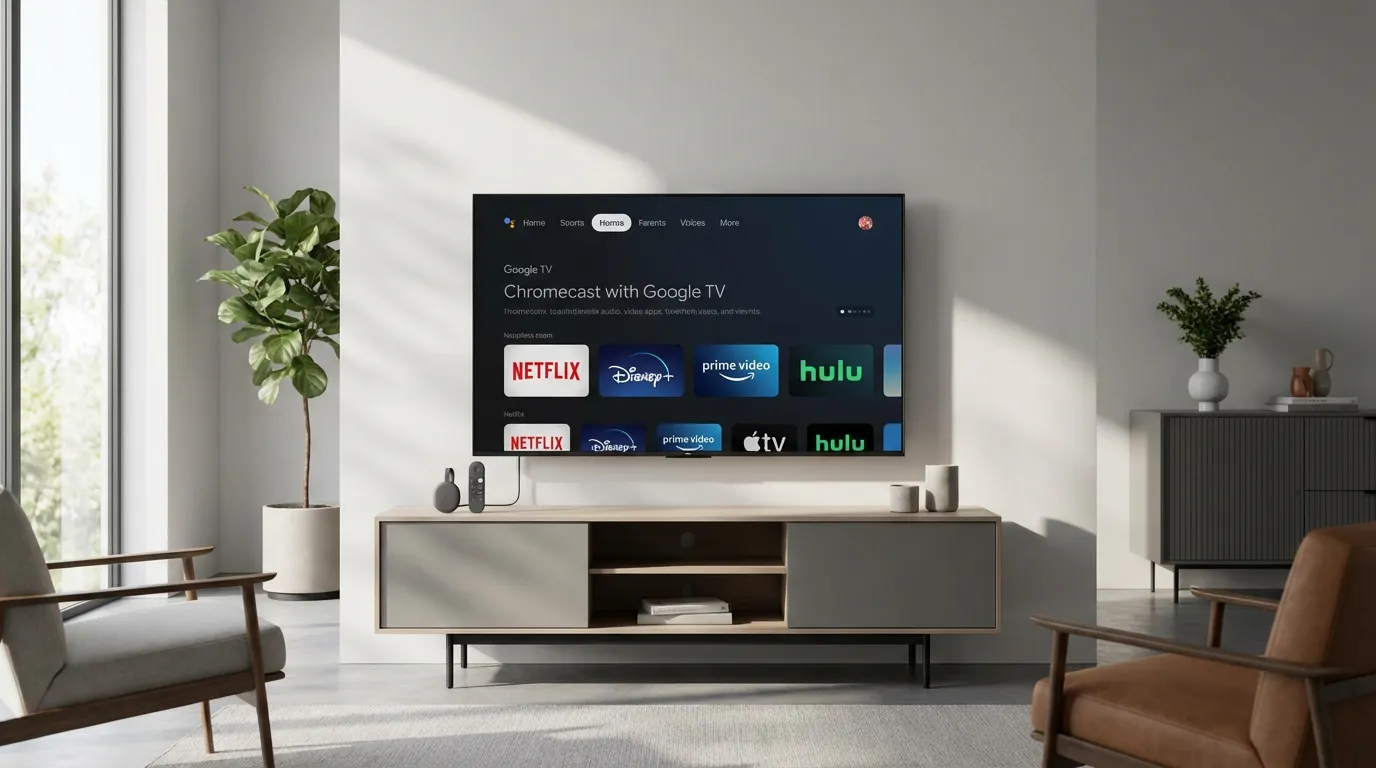
So, you've just got your hands on a Chromecast with Google TV. First of all, congrats! This sleek little device is a powerhouse of entertainment. But before you dive into the world of streaming, let's get it set up properly.
Initial Setup
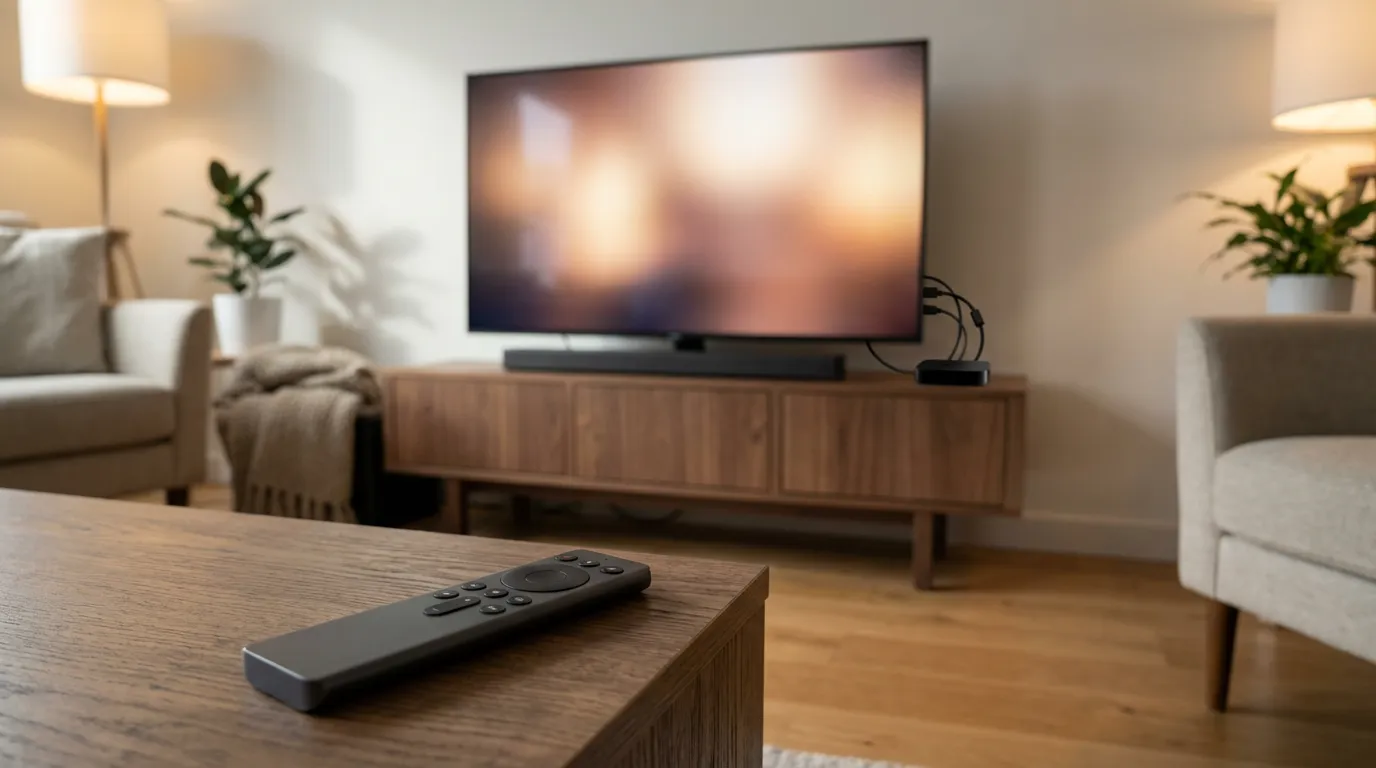
Setting up your Chromecast with Google TV is surprisingly straightforward. Begin by plugging the device into your TV’s HDMI port. Connect the USB power cable to a power outlet for stable performance. Once the device is powered on, you should see the initial setup screen on your TV.
Next, download the Google Home app on your smartphone. The app will guide you through connecting your Chromecast to your home Wi-Fi network. It’s as simple as following the prompts. Your device should automatically download any necessary updates during this process.
Best Apps for Chromecast with Google TV
Now that you're all set up, it's time to load your Chromecast with the best apps available. Here are some must-haves:
Streaming Services
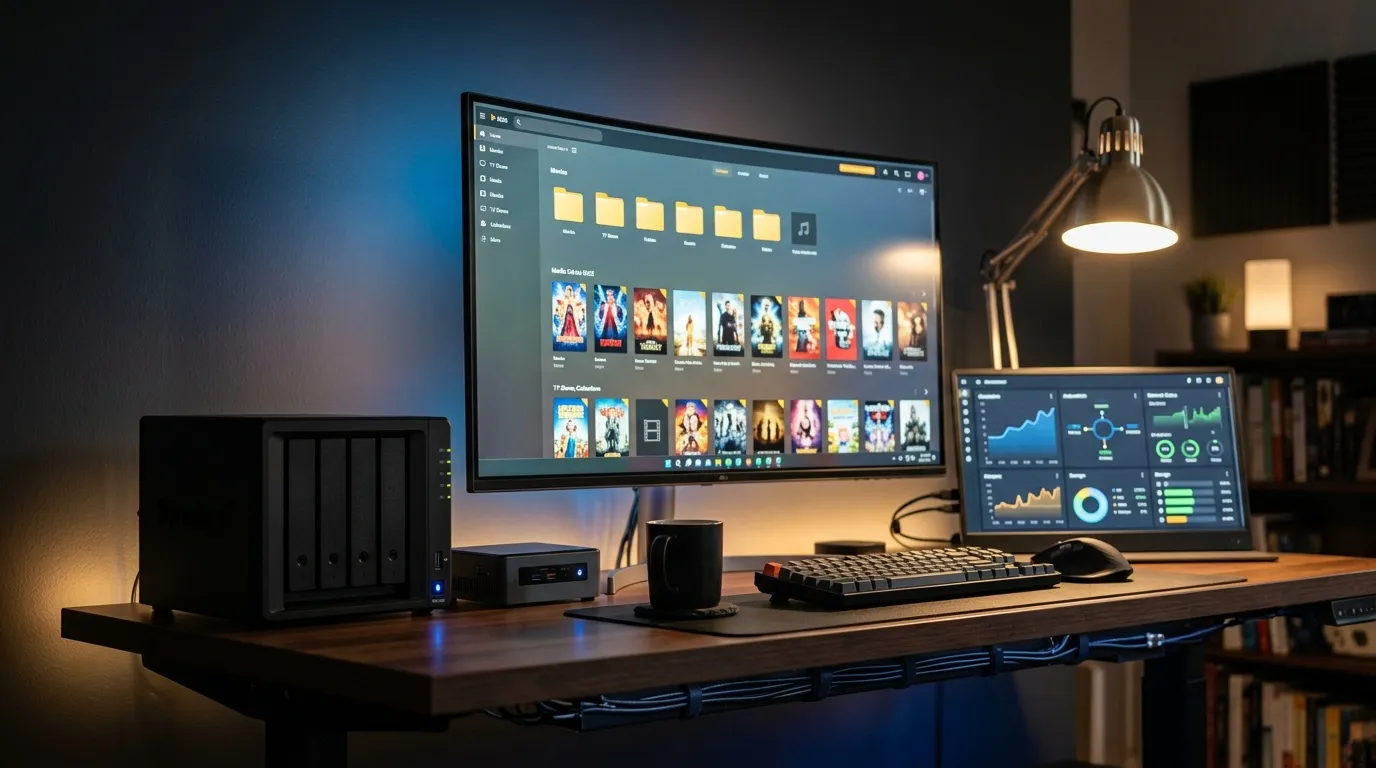
Netflix and Amazon Prime Video are the obvious choices, offering a vast library of movies and TV shows. But don't overlook Plex, especially if you have your own media library. Plex allows you to stream your personal content seamlessly.
Another unique service is Stremio, which aggregates content from various streaming platforms. It’s worth checking out our installation guide for Stremio for a deeper dive.
Live TV and Sports
For sports enthusiasts, ESPN and DAZN can keep you updated with the latest games and events. Sling TV and YouTube TV offer access to live television channels and can be a great addition if you’re looking to cut the cord.
Music and Podcasts
Spotify and TuneIn Radio make it easy to listen to your favorite tunes and podcasts. The Google TV interface allows you to search and play your favorite tracks with just a voice command.
Configuring Plex on Chromecast with Google TV
If Plex is your go-to for media streaming, integrating it with Chromecast is a breeze. First, ensure your Plex server is up and running. Not sure how to set it up? Our beginner’s guide to setting up Plex can help you get started.
Once your server is active, install the Plex app on your Chromecast. Open the app, sign in, and you should see your media library. Chromecast acts as a remote control for Plex, streaming content from your server directly to your TV.
Casting vs. Native Apps
With Chromecast, you have two options: casting content from your phone or using native apps directly on Google TV. Casting can be convenient if you're browsing on your phone and want to quickly switch to the TV. On the other hand, native apps can offer better functionality and user interface since they’re specifically designed for the Google TV environment.
Troubleshooting Common Issues
Even the best devices can have hiccups. Here are some common problems and how to tackle them:
Wi-Fi Connectivity Issues
If your Chromecast is having trouble staying connected, make sure your router is close enough to the device. You can also try restarting your router or checking for firmware updates. Sometimes, switching to the 5GHz band can improve connectivity.
Streaming Buffering
Buffering can ruin a good binge-watch session. Ensure that your internet speed is sufficient for streaming. If you're having persistent issues, clearing the cache can help. For more detailed steps, see our guide on clearing the cache to fix buffering.
Remote Not Responding
If the remote isn't responding, check the batteries first. If that’s not the issue, try re-pairing the remote with your Chromecast through the Google Home app.
Final Thoughts on Chromecast with Google TV
Chromecast with Google TV is a versatile streaming device that opens up a world of entertainment options. Whether you're into movies, sports, or music, this device has something for everyone. Plus, with its easy setup and app-rich environment, you’ll be streaming like a pro in no time.
Looking for more ways to enhance your media experience? Check out our guide to setting up Jellyfin prerolls for a more cinematic viewing experience.