How to Clear Cache & Fix Buffering on Firestick Devices

Understanding Buffering and Cache on Streaming Devices
Buffering. It’s that dreaded word that sends shivers down the spine of any movie lover mid-binge. If you've found yourself yelling at your Firestick or other streaming device while waiting for your show to stop buffering, you're not alone. But why does this happen? And more importantly, how can you fix it?
Buffering occurs when your streaming device is unable to download data fast enough to keep up with playback. This can be due to a variety of factors such as slow internet speeds, network congestion, or even issues on the streaming service's side. Cache, on the other hand, refers to the temporary storage where your device keeps bits of data to help speed up processes. Over time, this cache can get bloated and cause performance issues.
Clearing Cache on Your Firestick
Clearing the cache on your Firestick can help resolve performance issues like buffering or app crashes. Here’s how you can do it with just a few clicks:
Step-by-Step Guide
- Go to the Settings menu on your Firestick home screen.
- Navigate to Applications and select Manage Installed Applications.
- Choose the app that’s causing problems, then select Clear Cache.
It’s that simple. By regularly clearing your cache, you can keep your device running smoothly. If you're using apps like Cyberflix and experiencing buffering, this could be a helpful fix.
Improving Network Settings for Better Streaming
Sometimes, the issue isn’t with your device, but with the network it’s connected to. To optimize your network settings, start by checking your internet speed. Services like Netflix recommend at least 5 Mbps for HD streaming and 25 Mbps for 4K. If your speed doesn’t meet these requirements, you might experience buffering.
Tips for Network Optimization
- Upgrade your internet plan if necessary.
- Use a wired connection where possible, as it can be more stable than Wi-Fi.
- Disconnect other devices that might be using the network.
- Consider using a dual-band router to help manage traffic more efficiently.
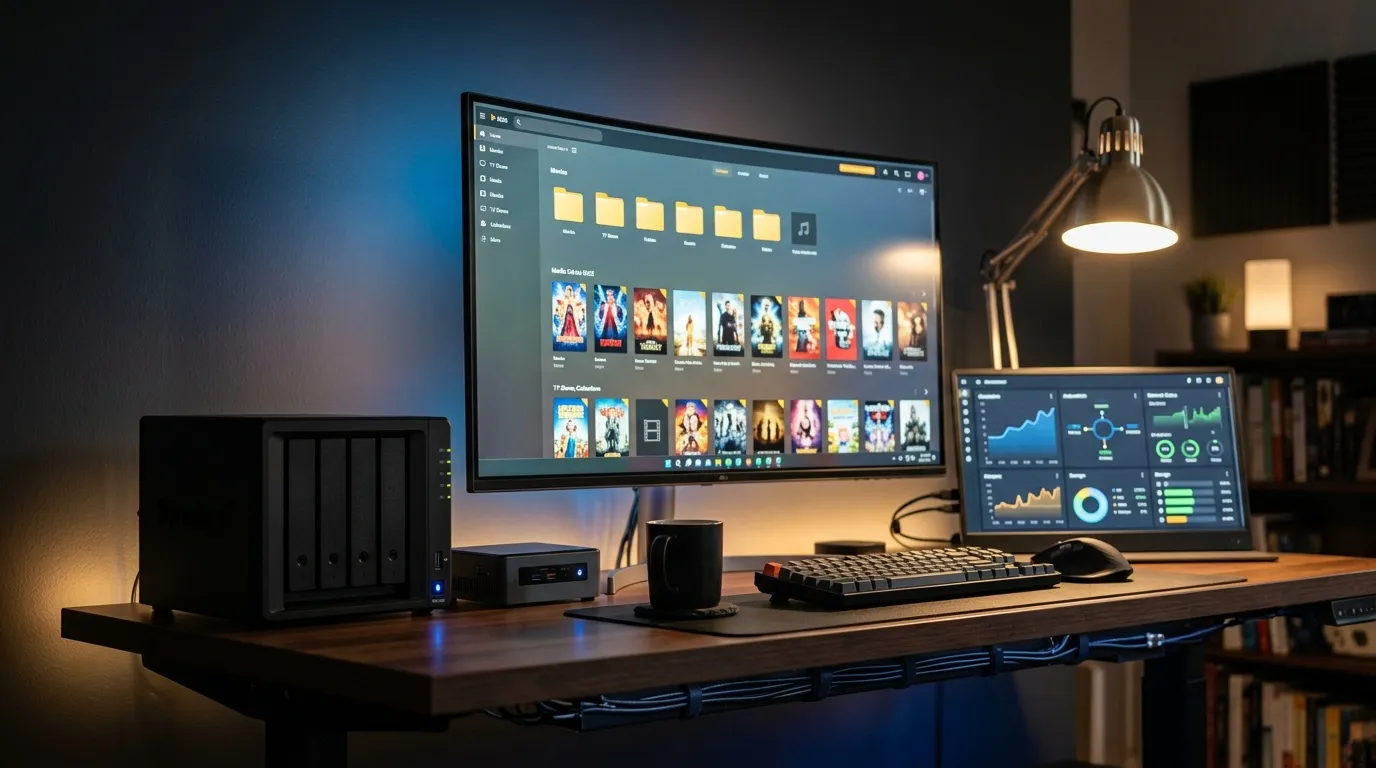
Optimizing your network is crucial, especially for streaming services like Plex, which can buffer on local networks if the connection is not stable. For more about optimizing Plex performance, check out our Plex troubleshooting guide.
Regular Maintenance and Updates
Like any piece of technology, your Firestick and other streaming devices need regular maintenance to function at their best. Keeping your device’s software up to date can prevent known issues and improve performance.
Keeping Your Device Updated
- Go to Settings and select My Fire TV.
- Choose About and then Check for Updates.
- If an update is available, download and install it.
This simple step can often solve unexpected problems, including buffering. It's also worth exploring additional apps that can enhance your streaming experience. Our list of top Firestick apps could offer some surprising benefits.
When Buffering Persists
So, you've cleared the cache, optimized your network, and ensured your device is up to date, but your TV still keeps buffering. Now what?
Consider contacting your streaming service for support, as the problem might be on their end. You might also explore alternative streaming apps known for smoother performance. For Firestick users, apps like Stremio can be a great choice. Check out our installation guide for Stremio on Firestick to get started.
Conclusion
Buffering doesn't have to ruin your streaming experience. With a few simple steps, you can clear your cache, optimize your network, and ensure your device is running the latest software. These actions will help you enjoy uninterrupted streaming sessions, whether you're catching up on the latest blockbuster or your favorite series on Plex. For more tips and tricks, visit our blog.