How to Install Stremio on Samsung TV, Firestick & Smart TVs
Introduction to Stremio
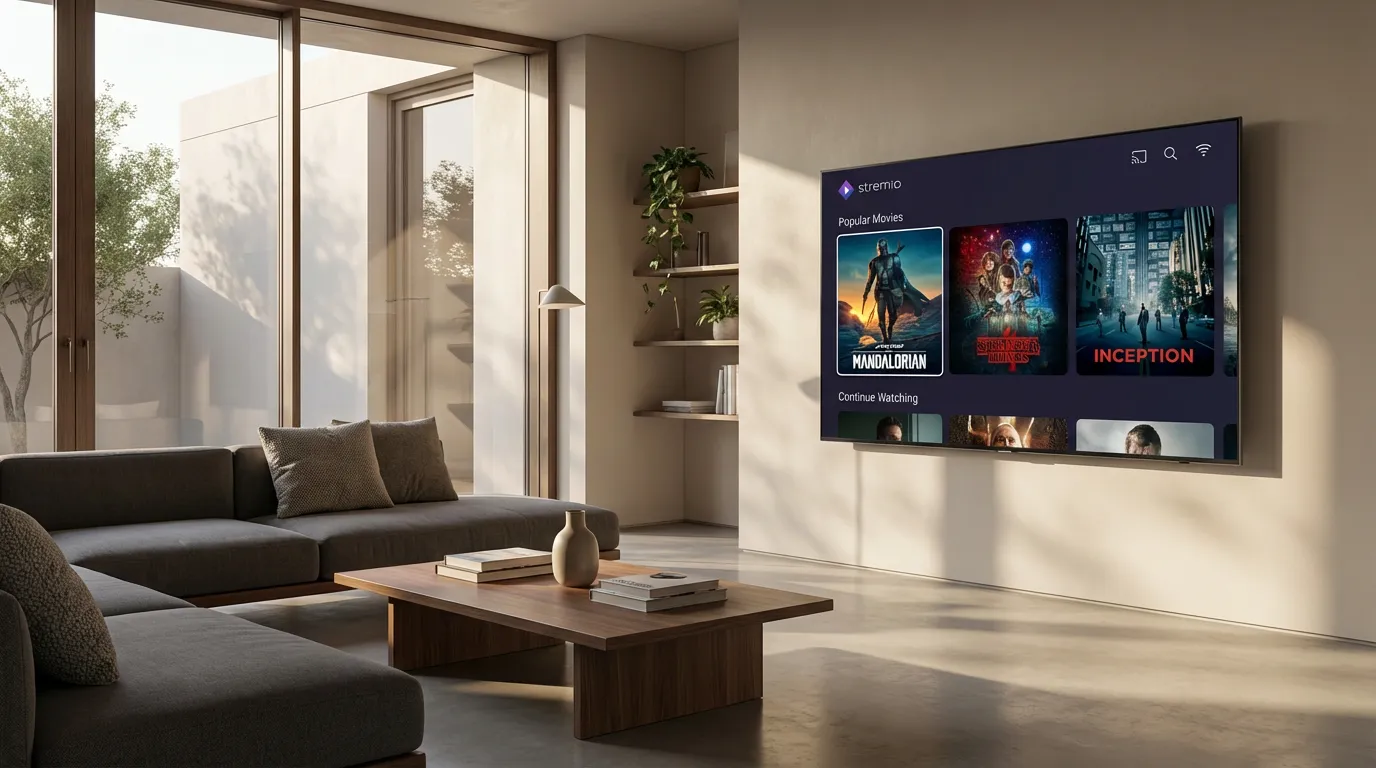
Stremio is a popular media center application that allows you to stream movies, series, and TV shows from different streaming platforms. Unlike other media servers, Stremio is simple to set up and offers a user-friendly interface. But getting it on your Samsung TV or Firestick might seem tricky. Let's break down the process step by step.
Installing Stremio on Samsung Smart TVs
Step-by-Step Guide
Samsung Smart TVs run on a unique operating system called Tizen. Unfortunately, Tizen doesn't support Android apps directly, which means you can't install Stremio from the Play Store or App Store. Here’s how you can get around this hurdle:
- Use a Streaming Device: Connect a streaming device like Amazon Firestick or Chromecast that supports Android apps.
- Use Samsung Smart Hub: Open the Smart Hub on your TV and navigate to the app section. Look for any available media streaming apps that might support Stremio links.
- Screen Mirroring: Use screen mirroring from a compatible Android device. Make sure both devices are on the same Wi-Fi network, and mirror your smartphone or tablet that has Stremio installed.
Troubleshooting Tips
If the app isn’t working correctly, check your internet connection. A stable Wi-Fi connection is critical for smooth streaming. Ensure your TV's firmware is up to date, as this can solve compatibility issues.
Installing Stremio on Amazon Firestick
Using APK Sideloading
The Amazon Firestick is a fantastic way to stream content, thanks to its compatibility with Android apps. Follow these steps to install Stremio via APK sideloading:
- Enable Apps from Unknown Sources: Go to Settings > Device > Developer Options and turn on 'Apps from Unknown Sources'.
- Install Downloader App: This app helps in downloading APK files directly on your Firestick. Search for 'Downloader' in the Amazon App Store and install it.
- Download Stremio APK: Open the Downloader app, enter the URL for the Stremio APK file, and download it.
- Install Stremio: Proceed to install the downloaded APK. Once installed, you can find it in the 'Your Apps & Channels' section.
Common Problems and Solutions
During installation, if you encounter a parsing error, it may be due to a corrupted APK file. Verify the APK source and try downloading again. Make sure your Firestick's software is updated to the latest version.
Installing Stremio on Android TV
Direct Installation from Google Play Store
Android TVs are perhaps the easiest for installing Stremio since they support the Google Play Store:
- Open Google Play Store: Use the search function to find 'Stremio'.
- Install the App: Click on 'Install' and wait for the app to download and install automatically.
- Launch Stremio: Once installed, open the app and start browsing your favorite content.
Extra Tips for Users
If you're looking to enhance your streaming experience, consider checking out some of the best Stremio addons to customize your setup further.
Remote Control Setup
One of the challenges users often face is integrating a remote control with Stremio. Here’s how to set it up:
- Universal Remote: Configure a universal remote to work with your streaming device.
- Use Mobile Devices: Many streaming devices offer mobile apps that can control your TV and Stremio installation.
- Voice Control: Enable Alexa on Firestick or Google Assistant on Android TV for voice commands.
These solutions often make navigation seamless, improving your overall experience.
Troubleshooting Common Issues
Sometimes, even after installation, you might face issues with streaming quality or app performance. Here are some solutions:
- Buffering Issues: This might be due to network congestion. Try restarting your router or switching to a faster connection.
- App Crashes: Ensure the app is updated. Also, clear cache data regularly to prevent crashes.
- Account Sync Issues: Ensure your Stremio account is correctly logged in and synced with your device.
For more tips on optimizing your streaming performance, our guide on top Firestick apps might be beneficial.
Conclusion
Installing Stremio on your Samsung TV, Firestick, or Smart TV doesn't have to be complicated. With the right steps, you can enjoy a smooth streaming experience. If you're new to media servers and want to explore more, check out our Ultimate Stremio Setup Guide for more detailed insights.