Jellyfin on Raspberry Pi Complete Setup and Performance Guide
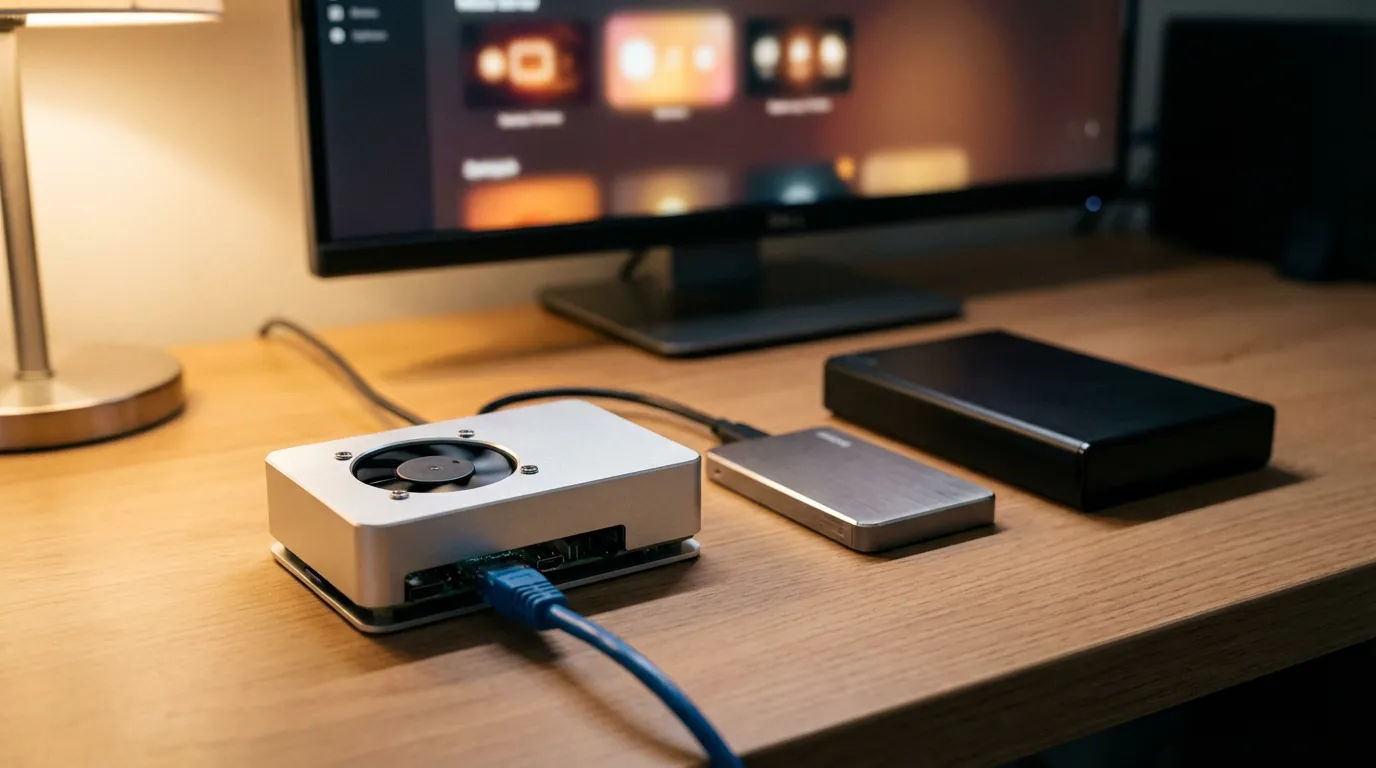
Running Jellyfin on a Raspberry Pi feels like a tiny magic trick. A credit-card computer hosting your movies, shows, and music, then serving them to TVs and phones across your house. It works. It also has sharp edges, and you want to know where they are before you hit them at midnight with a family waiting on the couch.
This guide walks you through a setup that stays stable, explains what performance you can expect, and calls out transcoding limits so you do not build a system that fights you. I will also share the tweaks that matter and the ones that sound smart but do not move the needle.
What a Raspberry Pi can and cannot do for Jellyfin
A Raspberry Pi is at its happiest when it can direct play your media. That means Jellyfin sends the video file to your client device without converting it. Your TV, streaming stick, or phone does the decoding. The Pi stays cool and quiet, and you get smooth playback.
Where things get messy is transcoding. Transcoding means Jellyfin converts the file on the fly because your client cannot play it as-is, or because your bandwidth forces a lower bitrate. A Pi can transcode some formats in limited cases, but it is not a transcoding monster. If your plan depends on converting 4K HEVC into 1080p H.264 for multiple users, you will hate your life.
Here is the honest way to think about it.
Direct play is your goal. It gives you the smoothest experience on a Pi.
One light transcode might work depending on codec, bitrate, and model, but it is a gamble.
Multiple transcodes is where the Pi taps out fast.
If you want a mental shortcut, build your library and client choices so you rarely transcode. Then the Raspberry Pi becomes a shockingly capable little server.
Hardware checklist that avoids the common traps
You can install Jellyfin on almost any Pi model, but your experience changes a lot based on CPU, RAM, and I/O.
Recommended Raspberry Pi models
Raspberry Pi 4 with 4GB or 8GB RAM is the sweet spot. USB 3 helps a lot for external drives.
Raspberry Pi 5 is faster and feels less fragile under library scans. If you already own one, it is a strong choice.
Older Pi models can run Jellyfin, but you will feel the pain during scanning, metadata downloads, and any form of transcoding.
Storage choices that keep your library responsive
Storage is where many Pi Jellyfin installs start strong and then turn sluggish.
MicroSD cards work for the OS, but they are not a great place for heavy database writes. Jellyfin writes metadata and a database. On a cheap microSD, that can mean slow menus and random corruption later. If you must use microSD, buy a high-endurance model.
USB SSD is the cleanest upgrade. Put the OS and Jellyfin on an SSD if you can. Even a basic SATA SSD in a USB 3 enclosure makes Jellyfin feel snappy.
USB HDD works fine for media storage. Pair it with an SSD for the OS and Jellyfin data if your budget allows.
My opinion. If you can afford one upgrade, make it an SSD for the OS and Jellyfin config. It changes the day-to-day feel more than you would expect.
Network requirements that matter more than you think
Jellyfin on a Pi can serve a lot of direct play streams if your network holds up. Use wired Ethernet if you can. Wi‑Fi can work, but Wi‑Fi issues look like Jellyfin issues, and you will waste time chasing the wrong problem.
Ethernet is the default choice for stability.
Wi‑Fi can work for one or two streams, but walls and interference can turn it into a buffering machine.
Choose your install method and why it matters
You have two sane paths on a Raspberry Pi.
Docker keeps Jellyfin contained and makes upgrades clean. It is my pick if you like repeatable setups.
Native install feels simpler if you want fewer moving parts. It is fine, but you own the dependency mess if you start stacking services.
If you want a Docker-first approach, this guide pairs well with this Jellyfin Docker Compose install walkthrough. Even if you do not copy it line for line, it helps you think in volumes, permissions, and predictable updates.
Prepare Raspberry Pi OS for a stable Jellyfin server
Start with Raspberry Pi OS Lite if you want a headless server. A desktop environment burns RAM and CPU for no payoff.
Update the system and set basics
Run updates and set a static IP or DHCP reservation on your router. A changing IP turns remote apps, bookmarks, and client setups into a scavenger hunt.
sudo apt update
sudo apt full-upgrade -y
sudo reboot
Enable SSH and confirm networking
SSH saves time. Confirm you can ping the Pi from another device. If you cannot, fix networking now, not after you import a library.
Mount your media drive the reliable way
Auto-mounting a USB drive by clicking it in a file manager is a trap. You want a stable mount point that survives reboots.
Common approach:
Create a mount folder like
/mnt/mediaMount by UUID in
/etc/fstabUse a Linux filesystem for fewer permission headaches. If you must use NTFS, expect more friction.
If you already have a Plex server on a Pi and want to compare the storage and mount steps, this Raspberry Pi Plex server setup guide covers similar gotchas that apply here too.
Install Jellyfin on Raspberry Pi
I will keep this section practical. You can install Jellyfin in several ways, but your goal is a running server with clean permissions and predictable paths.
Option A Docker install with persistent storage
Docker gives you a neat folder structure and clean updates. You map three main things into the container.
Config for Jellyfin settings and database
Cache for transcode and artwork cache
Media as read-only if you want safety
When you do this, you can move the whole install to a different Pi later with less drama. If you want a full compose example and permission tips, use the Docker Compose Jellyfin guide as your reference.
Option B Native install for a simpler mental model
Native install can feel calmer. Jellyfin runs as a service, and you manage it with systemd. The downside is upgrades and dependencies can get messy if you pile on extra services later.
After install, confirm Jellyfin runs and listens on your network. Then go to:
http://YOUR_PI_IP:8096
Initial Jellyfin setup that prevents future pain
The setup wizard is fast, but your early choices affect performance and how often you hit transcoding.
Create an admin user and lock it down
Use a strong password for your admin account. Create separate user accounts for family. This avoids accidental settings changes and keeps watch history clean.
Add libraries with sane folder structure
Keep your media folders simple:
/mnt/media/Movies/Movie Name (Year)/Movie Name (Year).mkv/mnt/media/TV/Show Name/Season 01/Show Name - S01E01.mkv
I know the no-year rule in this article makes that example awkward. In your actual library, adding the release year in folder names helps matching when titles collide. If you hate renaming, you can still get decent matches, but you will spend more time fixing metadata.
Pick metadata options with performance in mind
Jellyfin can fetch images and metadata aggressively. On a Pi, that can feel heavy during the first scan. My take:
Run the first library scan when you do not need the server for streaming.
Limit extra image types if your UI feels slow. Posters and backdrops matter. Ten extra art variants do not.
Performance expectations for real-world playback
This is where people want a straight answer. You will not get a single number that fits every file and every client, but you can predict your experience if you think in scenarios.
Direct play scenarios where the Pi shines
If your clients can decode your files, a Pi can serve multiple streams without drama. Examples:
1080p H.264 in an MP4 or MKV container to a smart TV app or streaming stick
HEVC playback to devices that support HEVC in hardware
Music libraries with album art and basic transcoding to AAC or MP3
Direct play feels almost boring. That is the point.
Where performance starts to wobble
Subtitle burn-in is a quiet killer. If your client cannot handle the subtitle format, Jellyfin burns subtitles into the video, which forces a transcode. A Pi can struggle here.
High bitrate 4K can direct play on a local network, but it stresses storage and Wi‑Fi. If your drive is slow or your Wi‑Fi is flaky, you will blame the Pi.
Client mismatch forces transcoding. A browser tab is a common offender. Many browsers have limited codec support compared to a dedicated Jellyfin app.
Transcoding limits you should plan around
Transcoding on a Pi is where you need to be blunt with yourself. Software transcoding eats CPU. Hardware transcoding support varies based on model, OS, drivers, and how Jellyfin and FFmpeg are built.
Even when hardware acceleration works, you still face practical limits:
One transcode can push your Pi into high load and heat.
Audio transcoding is lighter but can still stack with video conversion.
Subtitle burn-in can turn a “direct play” file into a full video transcode.
If you want a server that shrugs at transcoding, a low-power mini PC tends to feel less stressful. A Pi is a “make direct play work” machine.
Jellyfin transcoding settings that make sense on a Pi
Transcoding settings can get nerdy fast. Keep it simple and aim for damage control.
Set a transcode temp directory on fast storage
Put the transcode directory on SSD if you have one. If you leave it on microSD, you can hammer the card and slow the system.
In Jellyfin, set the transcode path to a folder on your SSD, or even to RAM if you understand the risk. RAM transcode can help performance but it can crash streams if the device runs out of memory. I do not love it for a family server.
Limit bitrate to avoid runaway transcodes
If you stream outside your home, set sane remote streaming limits per user. If you let a remote client request a high bitrate that your upload cannot support, Jellyfin will transcode down, and your Pi will suffer while your stream still buffers. That combo feels cursed.
Remote access deserves its own focused walkthrough. If you plan to stream away from home, use this Jellyfin remote access setup and troubleshooting guide so you do not end up with a fragile port-forwarding setup.
Prefer clients that support your codecs
This is the sneaky performance hack. Choose playback devices that support the formats you store. A capable client saves your server from doing work.
If you keep HEVC files, use a client that can decode HEVC in hardware. If you rely on Dolby audio formats, use a client that can bitstream or decode them. Otherwise Jellyfin transcodes audio, and you start stacking conversions.
Library and file choices that reduce transcoding
If you want Jellyfin on a Pi to feel calm, shape your library around direct play. That can feel like a compromise, and it is. But it is also a clean trade. You shift effort from your server to your file prep and client choices.
Container and codec picks
These are practical defaults that tend to direct play on more devices:
Video. H.264 for widest support. HEVC saves space but can cause client issues depending on device.
Audio. AAC works almost everywhere. AC3 works on many TV devices. TrueHD and DTS-HD can cause audio transcodes on many clients.
Container. MP4 is friendly. MKV is fine for many apps but can trip up certain clients when paired with certain subtitle or audio tracks.
If you feel stuck choosing formats, read this MKV vs MP4 guide for media servers. It helps you think in terms of playback compatibility instead of internet arguments.
Subtitle strategy that avoids burn-in
Subtitles are where your Pi can get ambushed.
Use text-based subtitles like SRT when you can. Many clients handle them without forcing a transcode.
Image-based subtitles can trigger burn-in. That means a video transcode, which is rough on a Pi.
If you watch a lot of anime or content with forced subtitles, test one episode on your main client before you import an entire series. That one test can save hours of confusion later.
System tweaks that keep the Pi stable under load
Some tweaks help. Some are cargo cult. Here are the ones I keep coming back to.
Cooling and power supply are not optional
If your Pi throttles, Jellyfin feels like it is stuttering even when the network and files are fine. Use a decent power supply and active cooling. A small fan and a case with airflow is boring, but it prevents the “why is this slow tonight” mystery.
Reduce background noise on the Pi
Do you need a desktop environment, Bluetooth, and a pile of services running? If not, turn off what you do not use. Your Pi does not have spare CPU to waste.
Schedule heavy tasks
Library scans, image downloads, and intro detection can spike load. Run those when you are not streaming. If you share the server with family, pick a quiet window and stick to it.
Put Jellyfin data on SSD when possible
I said it earlier, but it keeps paying off. Moving Jellyfin config, cache, and database off microSD makes the UI feel sharper and reduces the chance of storage-related weirdness.
Remote streaming realities on a Raspberry Pi
Remote streaming is where a Pi setup can feel either smooth or miserable. It depends on two things: your upload speed and how much transcoding you force.
If your upload supports the bitrate and your client can direct play, remote streaming can feel solid.
If your upload is limited, Jellyfin will transcode down. That can crush your Pi.
My advice is blunt. If remote streaming is a core use case and you cannot guarantee direct play, consider a stronger server. If remote streaming is an occasional thing, set strict bitrate caps per user and accept that 4K remote playback is not the goal.
Prerolls and cinema mode on a Raspberry Pi
I love a good preroll. It turns a casual watch into a mini theater moment. It also adds one more file to play before your movie, so you want it to direct play too.
If you want to add prerolls in Jellyfin, start with this Jellyfin prerolls and cinema mode setup guide. Then keep these Pi-friendly tips in mind:
Keep prerolls short and encoded in a format your clients direct play.
Store prerolls on the same fast storage as your media, not on the microSD.
Test prerolls on your slowest client. If it triggers transcoding, fix the file or swap the client.
If you want ready-made prerolls built for Jellyfin, browse the Jellyfin section at Jellyfin preroll videos and pick styles that match your library vibe.
Troubleshooting that points at the real cause
When playback fails on a Pi, people blame the Pi. Sometimes they are right. Many times they are blaming the messenger.
Buffering during direct play
Check Wi‑Fi first. Switch to Ethernet if you can.
Check drive speed. A slow USB enclosure can choke high bitrate files.
Check the client app. Some TV apps struggle with high bitrate even when the network is fine.
CPU hits 100 percent during playback
This almost always means transcoding or subtitle burn-in. Open the Jellyfin dashboard and look at the active stream. If you see “Transcode,” your Pi is doing conversion work. Then you decide what to change.
Switch client apps to one that supports your codec.
Swap subtitle format or disable subtitles to test.
Re-encode the file into a more compatible format if it is a repeat offender.
Library scan feels slow or the UI stutters
Move Jellyfin config and cache to SSD.
Reduce metadata extras and image types.
Let the first scan finish. Partial scans can feel like the server is stuck in mud.
A realistic setup blueprint you can copy
If you want a Pi Jellyfin server that behaves, here is a build pattern that I trust.
| Component | Recommendation | Why it helps |
|---|---|---|
| Raspberry Pi | Pi 4 with 4GB or more | Enough headroom for scanning and one demanding task |
| OS drive | USB SSD | Faster database and fewer storage issues |
| Media drive | USB HDD or NAS share | Cheap capacity, fine for read-heavy workloads |
| Network | Wired Ethernet | Removes random buffering and packet loss drama |
| Clients | Devices that direct play your codecs | Avoids transcoding, which is the Pi pain point |
When you should stop fighting the Pi
I like Raspberry Pi servers. I also hate watching people twist themselves into knots trying to force a Pi into a job it does not want.
Consider stepping up to stronger hardware if any of these describe you:
You need multiple remote users with mixed devices
You keep a 4K library and expect frequent downscaling transcodes
You use subtitle formats that trigger burn-in on your main clients
You want the server to handle anything you throw at it without file prep
If that is you, a mini PC can feel like relief. If you are mostly streaming at home with direct play clients, the Pi can feel like a quiet win.
Quick checklist for a smooth Jellyfin experience
Use Ethernet for the server
Put Jellyfin config and cache on SSD
Mount media drives by UUID so paths stay stable
Pick clients that direct play your codecs
Watch out for subtitle burn-in
Set remote bitrate limits per user
Cool the Pi so it does not throttle
If you build around those points, Jellyfin on a Raspberry Pi stops feeling like a science project and starts feeling like a tiny home streaming appliance that you control.