Jellyfin Remote Access Setup and Troubleshooting Guide
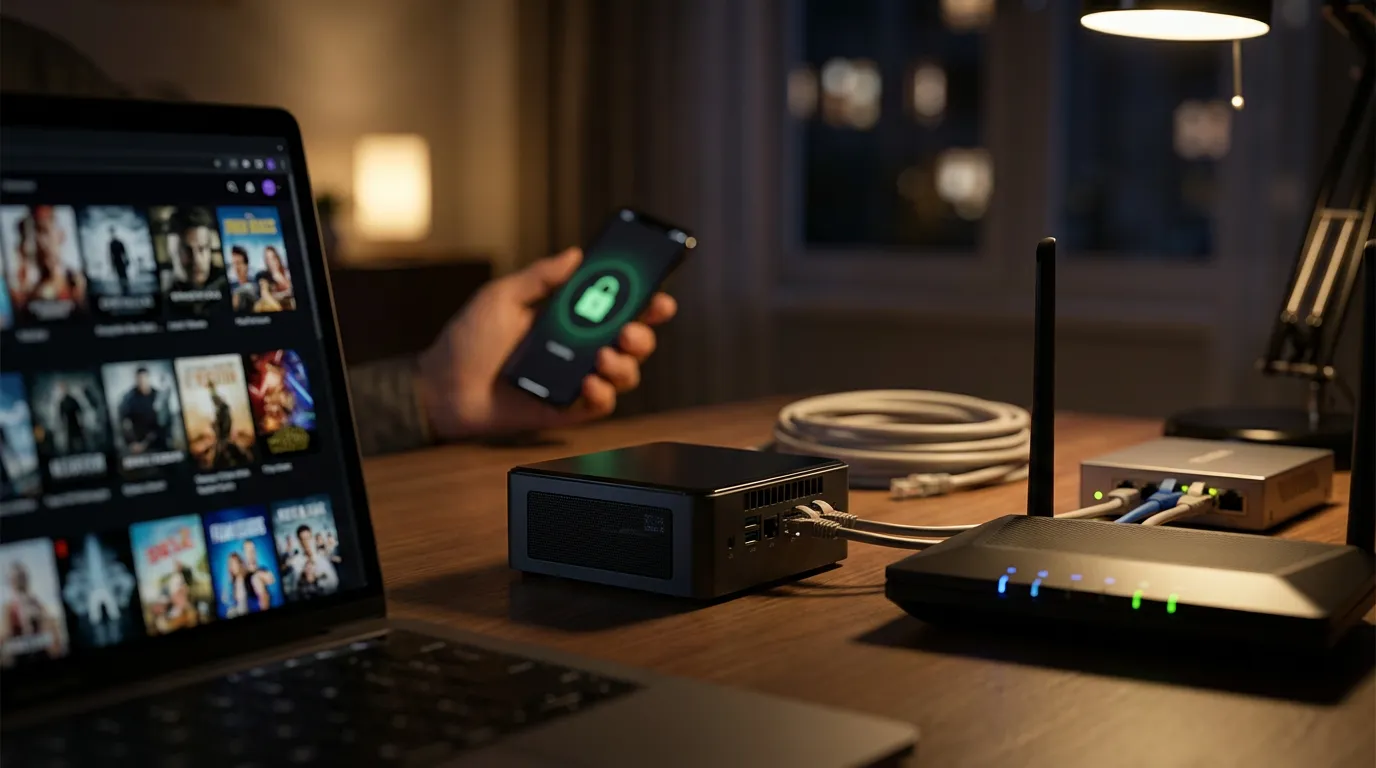
Remote streaming is one of those features that feels simple until you try to do it “the right way.” You want to open Jellyfin outside your home, you want it to be fast, and you do not want to wake up to a log full of random IPs hammering your server.
This guide walks you through three realistic paths:
- Port forwarding for the fastest, simplest setup
- Reverse proxy with HTTPS for a cleaner, safer public setup
- VPN for the “I want remote access, but I do not want to expose Jellyfin” crowd
I will also cover the failure points that waste the most time, like double NAT, CGNAT, hairpin NAT, broken certificates, and why remote access works on LTE but not on Wi-Fi (or the opposite). If you follow the checks in order, you can get to a working setup without guessing.
What remote access means for Jellyfin
Jellyfin remote access means your client device connects to your Jellyfin server from outside your local network. That sounds obvious, but it hides three parts that must all work:
- Your server must listen on a port and accept connections.
- Your router or gateway must route traffic from the internet to your server.
- Your client must reach you through a stable address, like a public IP or domain name.
If one part fails, you get endless “cannot connect” messages. And if you take shortcuts, you can end up exposing more than you meant to. Jellyfin does not phone home to broker connections like some platforms do. That is a pro and a con. You control it, but you also own the networking.
Before you start, do these quick checks
These checks save you from configuring a router for an hour only to learn your ISP blocks inbound traffic.
Confirm Jellyfin works locally
From a device on your home network, open Jellyfin using the server’s LAN IP and port:
- HTTP default:
http://LAN-IP:8096 - HTTPS optional:
https://LAN-IP:8920
If this fails, remote access will fail too. Fix local access first.
Give your server a stable local IP
Port forwarding breaks when your server IP changes. Set a DHCP reservation on your router so your Jellyfin host stays at the same LAN IP. You can also set a static IP on the host, but I prefer router reservations because they are easier to track.
Check your internet connection type
You need a public IPv4 address for classic port forwarding. Some ISPs place you behind CGNAT. When that happens, inbound connections never reach your router.
Here is a quick sanity test:
- Look at your router’s WAN IP.
- Compare it to the public IP your phone shows on a “what is my IP” page.
If the WAN IP does not match, you might be behind CGNAT or another upstream NAT device. That pushes you toward a VPN-based approach or a reverse proxy that lives on a public VPS. If you do not want to pay for a VPS, a VPN like Tailscale-style setups can still work without inbound ports, depending on your environment.
Method one port forwarding for direct access
Port forwarding is the straight line between the internet and your Jellyfin server. It also has the sharpest edges. If you do this, you must take security seriously.
Pick the right port and protocol
Jellyfin listens on:
- 8096 for HTTP
- 8920 for HTTPS (if you have configured it)
I do not like exposing raw HTTP to the internet. If you port forward 8096, your login traffic can travel unencrypted. You can mitigate this by forcing HTTPS via a reverse proxy, or by using Jellyfin HTTPS with a trusted certificate. More on that soon.
Create the port forward rule
On your router, add a rule:
- External port: choose one (many people use 8096, you can also use a high random port)
- Internal IP: your Jellyfin server LAN IP
- Internal port: 8096 (or 8920 if using HTTPS)
- Protocol: TCP
Using a high external port can reduce random drive-by scans. It does not make you safe. It just cuts noise. If you want safety, add HTTPS and strong auth.
Test from outside your network
Do not test from your home Wi-Fi at first. Some routers do not support hairpin NAT, so internal testing can lie to you.
Use LTE on your phone or a device on another network and try:
http://YOUR-PUBLIC-IP:EXTERNAL-PORT
If it works on LTE but fails on Wi-Fi, hairpin NAT is your culprit. Use your LAN IP at home, and your public domain or public IP outside.
Set a domain name with dynamic DNS
Public IPs can change. A dynamic DNS hostname gives you a stable name that updates when your IP changes. Many routers support built-in DDNS clients. If yours does not, you can run a DDNS updater on the Jellyfin host.
Security steps you should not skip
If you expose Jellyfin directly, you need to harden it. I have seen people skip this because “it is just for family.” Attackers do not care.
- Use strong passwords for all accounts, and disable unused users.
- Disable admin for daily accounts. Keep one admin user and keep it boring.
- Limit remote access by user if your setup allows it, and avoid guest-style accounts.
- Keep Jellyfin updated. Remote exposure raises the stakes.
- Prefer HTTPS. If you cannot do HTTPS, I would rather use VPN than raw HTTP.
If you want to polish the streaming experience once remote access works, you can also add cinema mode intros. It has nothing to do with security, but it makes remote streaming feel like a real service. This guide on Jellyfin prerolls and cinema mode setup is a fun next step.
Method two reverse proxy with HTTPS and a clean domain
A reverse proxy sits in front of Jellyfin and handles TLS, headers, and routing. This is the setup I keep coming back to. It feels cleaner. You visit https://media.yourdomain.tld and it works. No port numbers. No browser warnings. Less mess.
You still need port forwarding, but you forward standard web ports to the proxy, not Jellyfin.
How the traffic flows
- Internet hits your router on 443 (HTTPS)
- Router forwards 443 to your reverse proxy
- Reverse proxy forwards requests to Jellyfin on 8096 (internal)
What you need
- A domain name you control
- DNS record pointing to your public IP (A record, or CNAME to DDNS)
- A reverse proxy host on your network (can be the same machine as Jellyfin)
- A certificate via an ACME client (commonly automated)
Proxy options that work well
You have choices. Pick what matches your comfort level:
- Nginx if you like explicit config files.
- Caddy if you want automatic certs with minimal config.
- Traefik if you already live in Docker labels and like that style.
If you run Jellyfin in containers, you might already use Compose. If you want a stable baseline, this Jellyfin Docker Compose install guide pairs well with a proxy setup because you can keep everything defined in one place.
Reverse proxy configuration checklist
Misconfigured headers cause weird client bugs. Subtitles fail. Casting breaks. Websocket connections drop. It feels random, but it is usually headers.
Make sure your proxy supports:
- WebSockets pass-through
- Large uploads if you use web upload features
- Correct forwarded headers so Jellyfin knows the original scheme and client IP
If your proxy terminates TLS, Jellyfin will see HTTP on the backend. You must set headers so Jellyfin knows the external connection uses HTTPS. Many proxy templates include this, but I still see people miss it and then wonder why clients complain about mixed content.
When you should not use a reverse proxy
If your ISP blocks inbound 80 and 443, you will fight this setup. You can still do it with alternate ports, but certificate issuance can get awkward if you rely on HTTP-based validation. DNS-based validation can help, but it adds steps.
If you want remote access with less public exposure, skip ahead to the VPN method. It trades convenience for peace of mind.
Method three VPN for private remote access
A VPN method makes your remote device act like it is on your home network. Jellyfin stays private. You do not expose it to random internet traffic. That trade is worth it for a lot of people, including me, when I set up servers for family members who will forget passwords.
Two VPN styles you will see
- Traditional VPN server at home like WireGuard or OpenVPN. You connect back to your router or a small box inside your network.
- Mesh VPN style networks that punch through NAT when they can. These can work even when you cannot port forward.
Traditional VPN gives you more control. Mesh VPN can feel like magic when it works. It can also feel unsettling. Your devices join a private overlay network and you trust that control plane. I do not hate it. I just want you to know what you are agreeing to.
VPN benefits for Jellyfin
- No exposed Jellyfin ports to the public internet
- Access works from anywhere, even on strict networks, depending on the VPN
- You can use your normal LAN address and avoid DNS headaches
VPN drawbacks
- You must install and manage a VPN client on each remote device
- Some smart TVs and streaming sticks make VPN setup annoying
- Battery usage can rise on phones if the VPN stays on
If you stream on Android TV devices, you might already keep a “tinkering” mindset. If your remote client is a streaming stick that struggles with buffering, this guide on clearing cache to fix Firestick buffering can help once your network path is stable.
Security choices that matter more than people admit
Remote access changes your threat model. That sounds dramatic, but it is true. On LAN, Jellyfin sits behind your router. Exposed to the internet, it becomes a target. Most attacks are boring. Bots scan ports, try common passwords, and move on. You do not want to be the easy stop.
Prefer HTTPS even if you use a VPN
VPN encrypts traffic in transit, but HTTPS still helps with client behavior and reduces the chance of credential leaks on misconfigured networks. If you can run HTTPS cleanly, do it.
Limit who can log in
Sharing your server with a lot of users feels friendly, until you manage it. Every user is another password, another device, another “I forgot my login” message at midnight.
I like a small user list. I also like separate accounts per person. Shared accounts kill accountability. When something breaks, you cannot tell who changed settings or who signed in from a strange device.
Watch your logs
Jellyfin logs can show repeated failed logins and suspicious patterns. If you see noise, consider:
- Moving to VPN-only access
- Using a reverse proxy with additional controls
- Changing the exposed port if you used direct port forwarding
Think about the admin account like a root password
Keep one admin. Use a long password. Do not use it on phones where autofill might leak. This feels paranoid until the day it does not.
Troubleshooting checklist when remote access fails
Here is the part people want. The “why does it not work” section. Work through these in order. Do not jump around.
Step one confirm the service listens on the expected port
On the server, confirm Jellyfin listens on 8096 or 8920. If you run Docker, confirm the container port mapping matches what you think it is.
Common mistake: you mapped -p 8096:8096 but Jellyfin inside the container listens on a different port because you changed it. Or you mapped it to localhost only. Fix the mapping, then retest locally.
Step two check the server firewall
Host firewalls block inbound traffic even if the router forwards it. Allow inbound TCP on your Jellyfin port for your LAN interface. If you run a reverse proxy, allow inbound TCP on the proxy port instead.
Step three confirm the router forwards to the right LAN IP
Verify your Jellyfin server LAN IP did not change. If it did, your port forward points to a dead address. Create a DHCP reservation and update the rule.
Step four rule out double NAT
Double NAT happens when you have an ISP modem-router feeding your own router. Port forwarding on the inner router will not work unless you also forward on the outer device or put your router in bridge mode.
Symptoms:
- Everything works on LAN
- Port check sites show closed ports
- Router WAN IP looks private, like 192.168.x.x or 10.x.x.x
Step five check for CGNAT
If your router WAN IP sits in 100.64.0.0/10, your ISP likely uses CGNAT. Port forwarding will fail. Your options:
- Ask your ISP for a public IP
- Use a VPN method
- Use a reverse proxy hosted on a public server and tunnel back home
Step six test from a true external network
Testing from home Wi-Fi can mislead you. Use LTE or a friend’s network. If it works externally but not internally using your public domain, you hit hairpin NAT. Your fix is split DNS, local DNS override, or you accept that at home you use the LAN address.
Step seven reverse proxy issues that cause endless pain
If you use a reverse proxy and get a blank page, login loop, or playback fails, check these:
- WebSockets are enabled and passed through
- Forwarded headers include the original Host and scheme
- HTTP to HTTPS redirects do not loop
- Certificate matches the hostname you use
If you see a login loop, I usually suspect a proxy header issue or mixed HTTP and HTTPS. Fix your external URL to always be HTTPS, and make sure the proxy tells Jellyfin it is HTTPS on the outside.
Step eight client-side problems that look like server problems
Some “remote access” failures are client quirks.
- Wrong server URL saved. Remove the server entry and add it again.
- DNS cache. Reboot the client device or clear DNS if you can.
- Codec and bitrate limits cause playback failure that looks like connectivity. Lower the remote streaming bitrate and retry.
Performance tips for remote streaming that do not waste bandwidth
Once remote access works, you will hit the next wall. Performance. This part can feel personal. Your server can be fine, your internet can be fine, and you still get buffering because the client forces a transcode.
Know your upload speed
Your home upload speed limits remote streaming. If you have 10 Mbps upload, you cannot expect multiple high bitrate streams without pain. You can still stream. You just need realistic bitrate settings and maybe some pre-encoded media.
Set remote streaming limits in Jellyfin
Set a max remote bitrate per user or per client profile. This prevents one device from trying to pull a massive stream and starving everything else.
Direct play beats transcoding
Transcoding is useful, but it can chew CPU or GPU. If your server struggles, aim for formats your clients can direct play. If you want a deeper sense of format tradeoffs, you can compare containers and compatibility in this MKV vs MP4 media server format guide.
Watch for subtitles that force transcodes
Some subtitle formats trigger transcoding on some clients. If your remote stream buffers when subtitles are on, test with subtitles off. If that fixes it, convert subtitle formats or choose a client that handles them natively.
Quick decision guide which remote access method should you pick
| Method | Who it fits | What can go wrong |
|---|---|---|
| Port forwarding | You want speed and you accept exposure | ISP blocks inbound ports, double NAT, weak security |
| Reverse proxy with HTTPS | You want a clean domain and better web hygiene | Cert issues, websocket misconfig, hairpin NAT confusion |
| VPN access | You want privacy and fewer public attack paths | Client setup friction, TV device limitations |
Common questions people ask but hate hearing the answer to
Can I expose Jellyfin without HTTPS if I use a strong password
You can. I would not. Password strength does not encrypt traffic. If your credentials travel over HTTP, you are trusting every network between you and home. That trust feels optimistic.
Should I change the default ports
Changing ports reduces random scans. It does not replace HTTPS, updates, and strong auth. If you do it, do it for noise reduction, not safety.
Why does remote access work on my phone but not on my laptop at home
Hairpin NAT. Your home network tries to reach your public IP, the router fails to loop it back inside, and the connection dies. Use the LAN IP at home, or set up split DNS so your domain resolves to the LAN IP when you are inside.
Is a VPN slower than port forwarding
Sometimes. It depends on your VPN path and hardware. In practice, a well-configured WireGuard setup can feel close to direct access for streaming. The bigger difference is convenience, not speed.
Where to go next after remote access works
Once you can stream outside your home, you start caring about polish. The interface, the flow, the vibe. I like adding prerolls because it makes your server feel like a theater instead of a folder viewer. If you want a curated set, browse the preroll video library and filter for Jellyfin-ready options. If you want to stick with Jellyfin branding, start with the Jellyfin prerolls collection.
Remote access is a networking puzzle, but it is also a trust decision. You pick how public you want your server to be. If you feel torn, that is normal. I do too. When in doubt, VPN access gives you a calmer night of sleep, and you can still move to a reverse proxy later when you want that clean HTTPS domain.