What Is Emby Media Server? Complete Guide for New Users
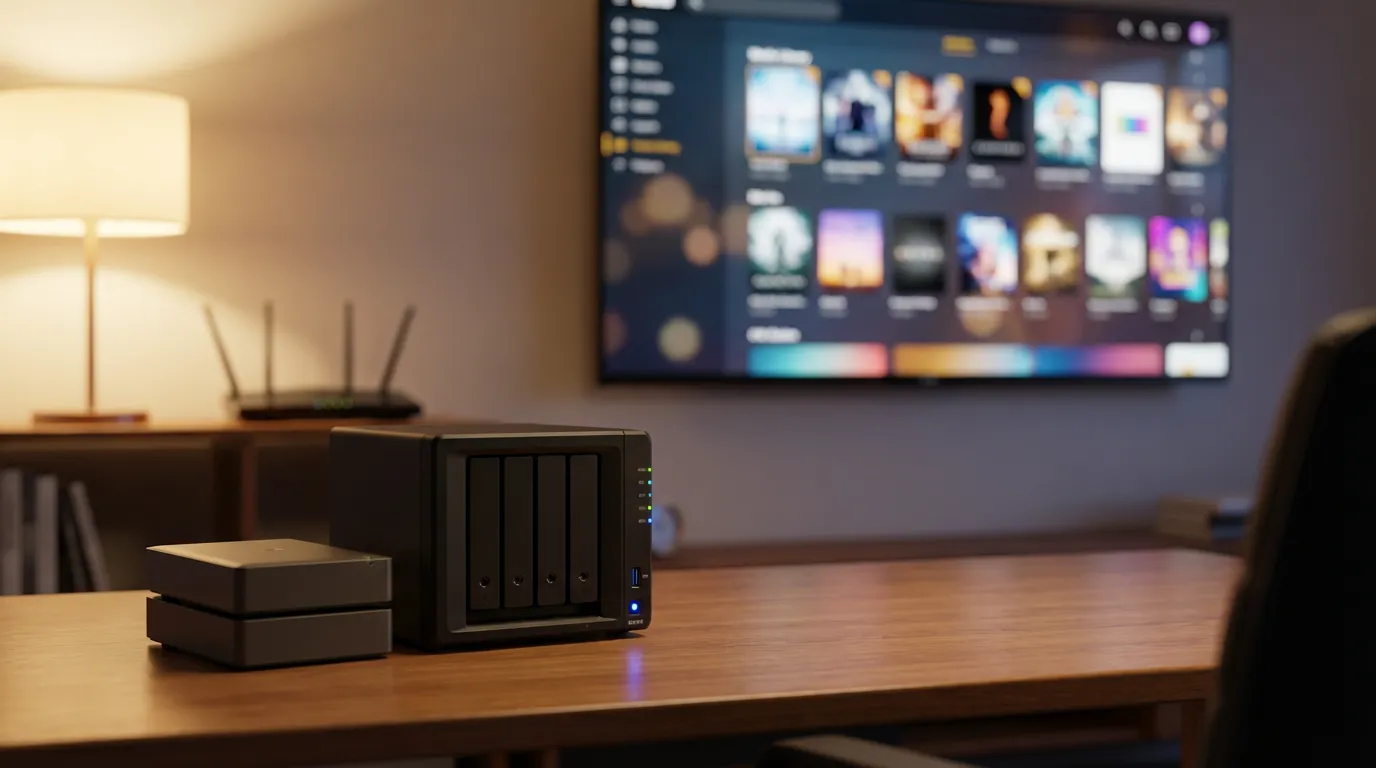
You have a folder full of movies and shows. You want cover art, watch status, subtitles, profiles for your family, and a clean app on every screen in your house. You also want it to work when you are away from home, without turning your router settings into a weekend project. That is the promise of Emby.
Emby Media Server sits in the middle of your media life. It scans your files, pulls metadata, organizes everything into a library, then streams it to phones, TVs, tablets, browsers, and streaming boxes. It can play files as-is when a device supports them. It can convert formats on the fly when a device does not. That balancing act is where media servers either feel magical or feel like homework.
This guide walks you through what Emby is, what it does well, where it can annoy you, how to set it up, what it costs, and how it stacks up against alternatives. I will keep it practical. You will finish with a clear sense of whether Emby fits your setup.
What Emby is and what it is not
Emby is a self-hosted media server platform. You run the server on a computer, NAS, or home server. You point it at your media folders. Emby builds a library with posters, descriptions, cast, seasons, and extras. Then you sign in from Emby apps and stream your content.
Emby is not a streaming subscription like Netflix. It does not hand you a catalog of licensed movies. You bring your own files. You can rip discs you own, record TV, or manage downloads you already have. Emby does not care where the files came from. It cares that they are readable and named well.
Emby is also not a file manager. It does not rename your library for you by default. It can help with metadata matching, but you still want a sane folder structure. If your files look like Movie.Final.v3.mkv in a random folder, Emby can guess wrong. When it guesses wrong, it feels personal.
Why people pick Emby
Emby tends to attract people who want control without going fully DIY. Jellyfin gives you full open-source freedom. Plex gives you a polished, mainstream feel. Emby sits between them. You get a strong server, a wide app lineup, and lots of settings. You also accept that some features sit behind a paid tier.
Here is what makes Emby stick for many households.
Clean library organization that makes sense
When Emby matches your media correctly, it looks sharp. Posters load fast. Collections group movies into sets. TV seasons line up cleanly. You can split versions like a 4K copy and a smaller travel copy. You can add multiple libraries for Movies, TV, Kids, Anime, or whatever makes your home calmer.
User profiles and access control
Emby lets you create users, assign libraries, and set restrictions. You can hide R-rated movies from kids without creating a separate server. You can limit playback on certain devices. You can even block deletion if you have one family member who treats your server like a shared Dropbox.
Transcoding when devices cannot play your files
Direct play feels fast and clean. Transcoding feels like your server is sweating. Emby supports both. When a device cannot handle a codec, bitrate, or subtitle format, Emby can convert the stream in real time. If you have hardware acceleration set up, it can stay smooth even with higher resolution files.
This is where Emby becomes a home infrastructure tool, not an app. You can pick a file format that suits your storage and quality goals, then let Emby handle the messy part of device compatibility.
Live TV and DVR for antenna or cable tuners
If you want local channels, Emby can integrate with tuner hardware. You can watch live TV inside Emby apps. You can schedule recordings and build a personal DVR library. This feature can feel like a superpower if you live in an area with solid antenna reception. It can also feel like a project if your signal is weak and your recordings glitch.
Extras that make your server feel like a theater
Media servers can feel sterile. You click a movie and it starts. That is fine, but it is not fun. If you like the cinema vibe, you can add preroll clips before playback. You can run a short studio-style intro, a “feature presentation” bumper, or a fake streaming-service intro that makes your library feel curated.
If you want to see what that looks like, the Emby preroll collection has clips built for Emby users. If you want to browse a wider range across servers, use the preroll browsing page.
Core features you should understand before installing
Emby can do a lot. That is both the appeal and the trap. You do not need to turn every knob. You do need to understand a few core systems so you do not blame Emby for something that is really a networking or file naming problem.
Library scanning and metadata matching
Emby scans folders you point it to. It tries to identify each movie or episode. It downloads poster art, descriptions, cast, and more. Matching works best when your files follow a simple structure.
| Media type | Folder example | File example |
|---|---|---|
| Movies | Movies/Movie Name (Edition) | Movie Name (Edition).mkv |
| TV Shows | TV/Show Name/Season 01 | Show Name - S01E01.mkv |
If your naming is chaotic, you can still fix matches inside Emby. It works, but it gets annoying fast if you have hundreds of titles. I prefer to clean naming upstream. Your future self will thank you.
Clients and playback modes
Emby streams to client apps. Each client can either direct play or trigger transcoding. If you see buffering, the cause usually falls into one of these buckets.
- Network bottleneck. Wi-Fi congestion, weak signal, or limited upload for remote streams.
- Client limitation. The device cannot decode your file format.
- Subtitle forcing transcoding. Some subtitle formats force a full transcode on certain clients.
- Server horsepower. Your CPU or GPU cannot keep up with the transcode.
Emby gives you tools to see what is happening. Check the playback info in the client and the server dashboard. If your stream says “Transcoding” when you expected “Direct Play,” that is your clue.
Remote access and security
Remote access lets you stream from outside your home network. This is where newcomers get stuck. You need a path from the internet to your server. That can mean port forwarding on your router, a reverse proxy, or a VPN approach. Each path has tradeoffs.
Port forwarding is direct, but you must lock it down. Use strong passwords. Use HTTPS if you can. Avoid exposing admin access without extra care. I like the convenience, but I do not love the feeling of leaving a door open to the public internet.
If you want a smoother remote experience on the Plex side, you can compare remote access approaches in this remote access and port forwarding guide. The networking concepts apply even if you do not run Plex.
How to set up Emby step by step
You can get Emby running fast if you keep your goals narrow. Start with local playback. Add remote access after you trust your setup. Add live TV after that if you want it.
Step 1 Choose your Emby server hardware
Emby runs on a lot of hardware. The right choice depends on how many people stream at once and whether you need transcoding.
- Basic setup. A spare desktop or mini PC works if you direct play to most devices.
- Family setup. A modern CPU helps if you transcode for multiple screens.
- Power user setup. Hardware transcoding support matters if you push high bitrate files to mixed devices.
- NAS setup. Convenient storage, but CPU limits can bite you during transcoding.
I keep coming back to this: if you can avoid transcoding, your server gets easier. Pick client devices that direct play your files. Or standardize your library formats. Your electricity bill and your patience both improve.
Step 2 Install Emby Server
Install Emby Server on your chosen machine. Then open the web dashboard in a browser. The setup wizard guides you through the basics.
During setup you will do these tasks.
- Create an admin user and password.
- Pick a language and metadata preferences.
- Add libraries and point them at your folders.
- Set up user accounts for your household.
Step 3 Add libraries with a sane structure
Create separate libraries for Movies and TV Shows at minimum. It helps matching. It also helps browsing. A single mega-folder for everything makes your home screen feel like a junk drawer.
If you have mixed content, split it. Kids library. Anime library. Concerts library. Emby handles it well, and your family will stop asking where things are.
Step 4 Tune playback and transcoding
Go into server playback settings. Decide how aggressive you want Emby to be with transcoding. If you have a capable GPU and you trust hardware acceleration, enable it. If you do not, keep settings conservative and aim for direct play.
Watch one or two tricky titles. High bitrate 4K, HDR, and subtitles are the usual stress tests. If playback stutters, do not panic. Check whether the stream is transcoding and why.
If you want a deeper understanding of why transcoding happens and how to reduce it, the concepts in this transcoding hardware and software guide transfer cleanly to Emby thinking, even though the UI differs.
Step 5 Set up apps on your devices
Install Emby apps on the screens you use. Sign in with your server address and user account. Then test playback on each device.
This step sounds boring, but it pays off. Each device behaves a bit differently with codecs and subtitles. When you test early, you avoid the classic moment where movie night starts and your TV client refuses to play the file you picked.
Step 6 Add remote access if you need it
Only do this if you plan to stream away from home. If you stay on your home network, skip it.
When you do set it up, keep these habits.
- Use strong passwords for every user, not only the admin.
- Limit admin access to devices you trust.
- Prefer HTTPS for remote access if you can configure it.
- Watch your server logs if you expose a port to the internet.
Emby apps and device support
Emby works through client apps. The app experience matters as much as the server. If your household uses a mix of devices, app quality can decide whether Emby feels smooth or feels like a hobby you force on people.
Living room devices
Smart TVs and streaming boxes tend to be the main target. Some clients direct play more formats than others. When a client lacks codec support, your server ends up transcoding, and that pushes you into hardware decisions you did not plan to make.
If you want a simple rule, pick a main living room device that handles HEVC well. That one choice can reduce your server load a lot.
Phones and tablets
Mobile apps work well for personal viewing. They also expose you to remote streaming quality issues faster than a TV does. Cellular connections vary. Emby lets you set remote quality limits so you do not burn through bandwidth or trigger constant buffering.
Web playback
Browser playback is convenient, but browsers have their own codec quirks. If your household watches in a browser, you might see more transcoding than you expect. That is not Emby being stubborn. That is the browser ecosystem being the browser ecosystem.
Emby pricing and what you get for free
Emby has a free tier and a paid tier. The free tier covers the core idea. You can run a server, build libraries, and stream your media. That is the baseline you need to decide if you like Emby’s approach.
The paid tier, often called Emby Premiere, unlocks features that many people care about. Hardware acceleration for transcoding is a common reason people pay. Mobile app unlocks and advanced features can also push you there, depending on your device mix.
I have mixed feelings about this model. I like paying for software that I use daily. I also dislike the moment where you think you are done, then you realize the feature you need sits behind the paid tier. My advice is simple. Install Emby. Test it with your real devices. If you keep hitting limits that match your needs, then paying feels fair.
Emby compared with Plex and Jellyfin
You are not picking in a vacuum. Plex and Jellyfin sit right next to Emby in the same category. Each has a personality. That personality matters when you live with it.
| Topic | Emby | Plex | Jellyfin |
|---|---|---|---|
| Setup feel | Configurable, can feel technical | Polished onboarding, more guided | DIY vibe, flexible but hands-on |
| Paid features | Some key features behind paid tier | Many advanced features in Plex Pass | No paid tier for core features |
| Apps | Strong coverage across platforms | Wide coverage, mainstream focus | Improving, varies by platform |
| Control and privacy | More self-hosted control feel | More cloud account integration feel | Strong self-hosted control feel |
If you want a side-by-side breakdown focused on media server choices, the Plex vs Emby vs Jellyfin comparison page gives you another angle before you commit.
When Emby makes sense
- You want strong control over users, libraries, and playback rules.
- You want a mature app ecosystem without going full DIY.
- You do not mind paying if the paid tier solves your pain points.
When Plex makes more sense
- You want the smoothest onboarding for non-technical family members.
- You care about a polished ecosystem and you accept the account-centered model.
- You want a server that feels like a consumer product.
When Jellyfin makes more sense
- You want open-source control and you like tinkering.
- You want paid-free access to core features.
- You can tolerate uneven client app quality on some platforms.
Practical tips that prevent common Emby headaches
Most Emby problems do not come from Emby itself. They come from naming, networking, or unrealistic expectations of what a tiny server can transcode. Here are fixes that save you time.
Keep your file naming boring
Give Emby clean names. Put each movie in its own folder. Use season folders for TV. When matching fails, fix the file name before you fight the metadata editor for an hour.
Pick a default quality and stick to it
If you mix high bitrate remux files with tiny encodes, your playback experience becomes unpredictable. Decide what quality level you want for most of your library. Then keep your files close to that target. Your server load becomes easier to predict.
Watch subtitles carefully
Subtitles can trigger transcoding. Some formats force it. If you see your server transcoding when it should direct play, try disabling subtitles as a test. If playback suddenly becomes smooth, you found the cause. You can then convert subtitles or adjust client settings.
Do not start with remote access
Get local streaming perfect first. Remote access adds router settings, DNS quirks, and security choices. If local playback stutters, remote playback will feel worse. Start inside your home network. Then expand.
Use prerolls to make your server feel intentional
This is optional, but it changes the vibe. A short preroll intro can turn a file server into a personal streaming service. It also gives you a fun way to theme your libraries. Horror night. Kids morning cartoons. Studio-style intros for movie collections.
If you want to test the idea, you can start with a themed Emby clip like the Barbie Emby preroll or something more universal like Emby Anywhere. Keep it short. If it annoys you after a week, remove it. If it makes you grin every time, keep it.
Questions newcomers ask about Emby
Do you need a powerful server for Emby
You need power when you transcode. If your clients direct play, Emby can run on modest hardware. If you stream to mixed devices and you want subtitles and 4K, your server needs more headroom. Hardware acceleration can change the whole experience, but it depends on your platform and paid features.
Can Emby replace streaming services
Emby replaces your personal library experience. It does not replace licensed catalogs unless you already own the content in file form. For many people, that is the point. You control what you keep. You control what disappears. That feeling is comforting, and also a bit unsettling when you realize how much you rely on your own infrastructure.
Is Emby hard to use
Day-to-day use feels easy. Setup can feel technical if you want remote access, transcoding, or live TV. If you stay local and keep your library tidy, Emby feels friendly. If you want it to work on every device on earth with zero effort, you will do some work.
What does the term Emby mean
People ask “what is an Emby” like it is a device. It is software. Your server runs Emby. Your TV runs an Emby app. The whole system is still your hardware plus Emby software, working together.
How to decide if Emby is right for you
If you want control, clean organization, and a serious media server that does not treat you like a child, Emby fits. If you want the smoothest experience for friends and family who hate settings, Plex might feel calmer. If you want open-source freedom and you enjoy tinkering, Jellyfin can be satisfying.
My honest take is this. Emby feels like the choice for people who want their server to behave like a tool, not a social platform. That is a compliment. It also means you will see more settings and you will need to make a few decisions. If that sounds like your kind of weekend project, you will probably enjoy it.
If you want more media server and cinema-mode ideas for Emby, Plex, and Jellyfin, browse the Prerolls blog for setup tips and playback tweaks that make your server feel like your own.