How to Set Up TorBox with Kodi Using the POV Addon
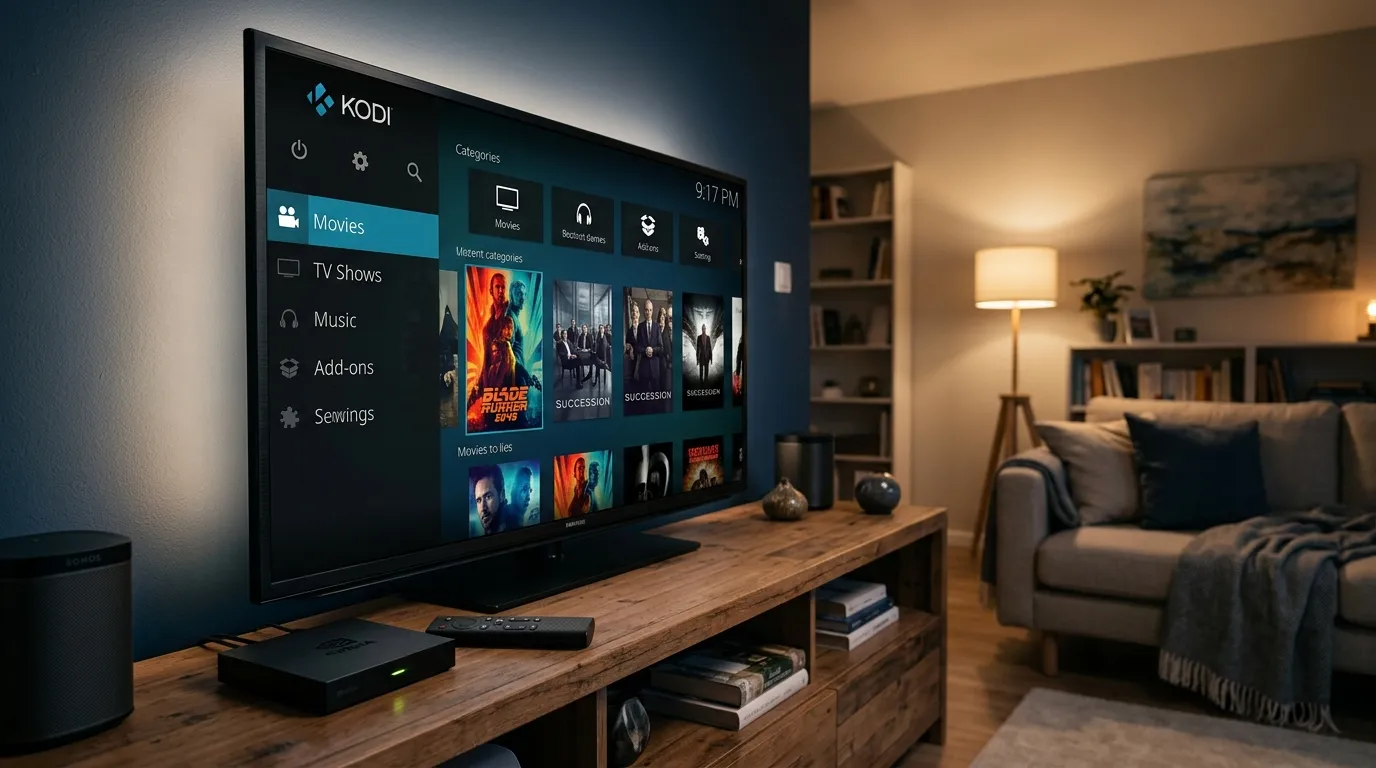
Kodi users have had a rough stretch with debrid options. If you are coming from Real Debrid, you have probably felt that shift already. Streams that used to appear cleanly can feel patchy, filtered, or harder to trust. That is why TorBox has started to get attention. When you sign up for TorBox, you get a debrid service that appeals to people who want fewer headaches. It does not carry the keyword filter problem people keep running into with RD, it supports multi-IP use, account sharing is far less restrictive, and the no-logs angle will matter to privacy-minded Kodi users.
I think that mix makes TorBox easy to understand. You want links. You want them to resolve. You do not want to babysit your setup every week. That is the appeal.
This guide walks you through the full setup in Kodi using the POV addon. If you are new to debrid, do not worry. If you are moving away from RD, this process should feel familiar, with a couple of small differences.
What you need before you start
Before you touch Kodi, make sure you already have a TorBox account and access to your API key. POV uses that key to connect your account. Without it, the addon cannot pull debrid results tied to your subscription.
You should also have Kodi installed and running on your device. Kodi 21 Omega works fine for this setup, which is good news if you have already updated and worried that addon compatibility might get weird. POV has been one of the easier options to work with on newer Kodi builds, and that matters. Nobody wants to spend an hour fighting menus before even getting to playback.
If your Kodi setup still feels half-finished, you may want to bookmark this complete Kodi setup with add-ons and home theater tips for later. It pairs well with a debrid setup like this.
Copy your TorBox API key
Start in your TorBox dashboard. Log in, open the dashboard, and go to Settings. You should see your API key listed there. Copy it exactly as shown.
Do not type it by hand unless you have no choice. One wrong character can waste ten minutes, and Kodi settings screens are not where patience goes to thrive. If you are on a TV box or streaming stick, I would copy the key to a notes app on your phone or computer so you can paste it with a remote app, keyboard app, or whatever input method your device supports.
Keep that key handy. You will paste it into POV in a later step.
Enable unknown sources in Kodi
Open Kodi and head into Settings. From there, go to System, then Add-ons. In that menu, turn on Unknown Sources.
Kodi will throw up a warning. That is normal. Accept it and move on.
This setting allows Kodi to install addons from repositories you add manually. POV is not coming from the official Kodi repository, so this step has to happen before installation. If that switch stays off, you can add the source URL and still hit a wall later.
I know this part makes newer users uneasy. It sounds sketchier than it is. Kodi has used this model for ages. You are telling Kodi that you want permission to install from a source you trust, not opening some wild back door into your device.
Add the POV repository source
Back out to the main Settings area and go to File Manager. Choose Add source. In the path field, enter the POV repository URL exactly like this: https://kodipov.github.io
Give the source a short name. Something like POV works fine. Save it, then back out to the Kodi home screen.
This step tells Kodi where to find the repository zip file. If the URL is wrong by even one character, the repository will not load. If Kodi says it cannot connect, double-check the spelling and make sure your device has internet access.
If you run Kodi on a Fire TV device and it has been acting sluggish during installs, this guide on clearing cache and fixing buffering on Firestick can help clean up the usual friction points.
Install the POV repository and addon
From the Kodi home screen, open Add-ons. Then click the package installer icon in the upper corner. Choose Install from zip file. If Kodi prompts you again about unknown sources, approve it.
Select the source name you created for POV. Open it and install the repository zip file. Wait for the notification that the repository has installed.
After that, choose Install from repository. Open the POV repository, go into Video add-ons, find POV, and install it.
Give Kodi a moment to finish. Depending on your device, this can take a few seconds or a little longer. Streaming sticks tend to feel like they are thinking through their life choices during addon installs. That part is annoying, but normal.
Once POV is installed, you can launch it from your Add-ons section.
Connect TorBox inside POV
Open POV, then bring up its settings menu. The exact path can vary a bit by skin or build, though you are looking for the section labeled Accounts or Debrid. Inside that area, find TorBox.
Select the TorBox option and paste your API key into the field provided. Save the setting.
That is the whole connection step. POV does not need a long device-code activation process here if it supports direct API entry for TorBox. That is one reason this setup feels cleaner than some older debrid pairings. Paste the key, save, and you are done.
If you migrated from RD, take a second to review any old debrid settings still enabled in POV. If RD remains active and priority rules still favor it, you may see stale or less useful links show ahead of TorBox results. If you want TorBox to do the heavy lifting, make sure its provider setting is enabled and any old service you no longer use is disabled or lowered in priority.
Test your setup with a search
Once your API key is saved, go back into POV and search for a movie or show. Pick something common so the scraper has a fair shot at returning multiple links. A mainstream title works better than an obscure documentary you forgot existed until this exact moment.
When TorBox is working, you should see resolved sources appear as cached or playable debrid links inside POV. The exact labels depend on the scraper package and POV skin, though the pattern stays familiar. You search, POV scrapes, and then it returns links that look ready to play instead of dead ends or endless resolving loops.
A working TorBox stream usually feels obvious. The source resolves fast. Playback starts without bouncing you through errors. You may also notice that titles that felt thin under RD start showing healthier source lists again. That is one of the reasons people are moving over. It is less about novelty and more about wanting their Kodi box to behave like a Kodi box again.
If playback fails, check three things before you do anything dramatic. Make sure your API key pasted correctly. Make sure your TorBox account is active. Make sure POV still has TorBox enabled in the accounts section. Most setup problems come from one of those three spots.
What to expect after the switch from Real Debrid
If you are leaving RD, the emotional arc here is weirdly familiar. At first you think, this cannot be that easy. Then you test a few titles and realize the setup is plain. That is refreshing.
TorBox stands out for a few reasons Kodi users care about. The lack of the keyword filter issue is a major one. Multi-IP support matters if you stream across different locations or devices. Account sharing rules feel less tense. The no-logs stance will appeal to users who care about privacy and do not want extra baggage attached to a streaming helper service.
None of that means every source will be magic. Kodi scraping still depends on addon quality, provider support, title popularity, and your own settings. Debrid can improve the pool, though it cannot fix a broken addon or a misconfigured scraper pack. I keep coming back to that because people blame the debrid service for problems caused somewhere else in the chain.
If you want a broader picture of the switch away from RD, this guide on Real Debrid alternatives and speed privacy value gives useful context around where TorBox fits.
Using Umbrella as an alternative addon
POV is not your only path. Umbrella is another Kodi addon that can work with TorBox using pretty much the same account flow. The install path changes because the repository source is different. For Umbrella, you would add the repository URL from https://umbrellaplug.github.io as a file source, install the repository zip, then install the addon from that repository.
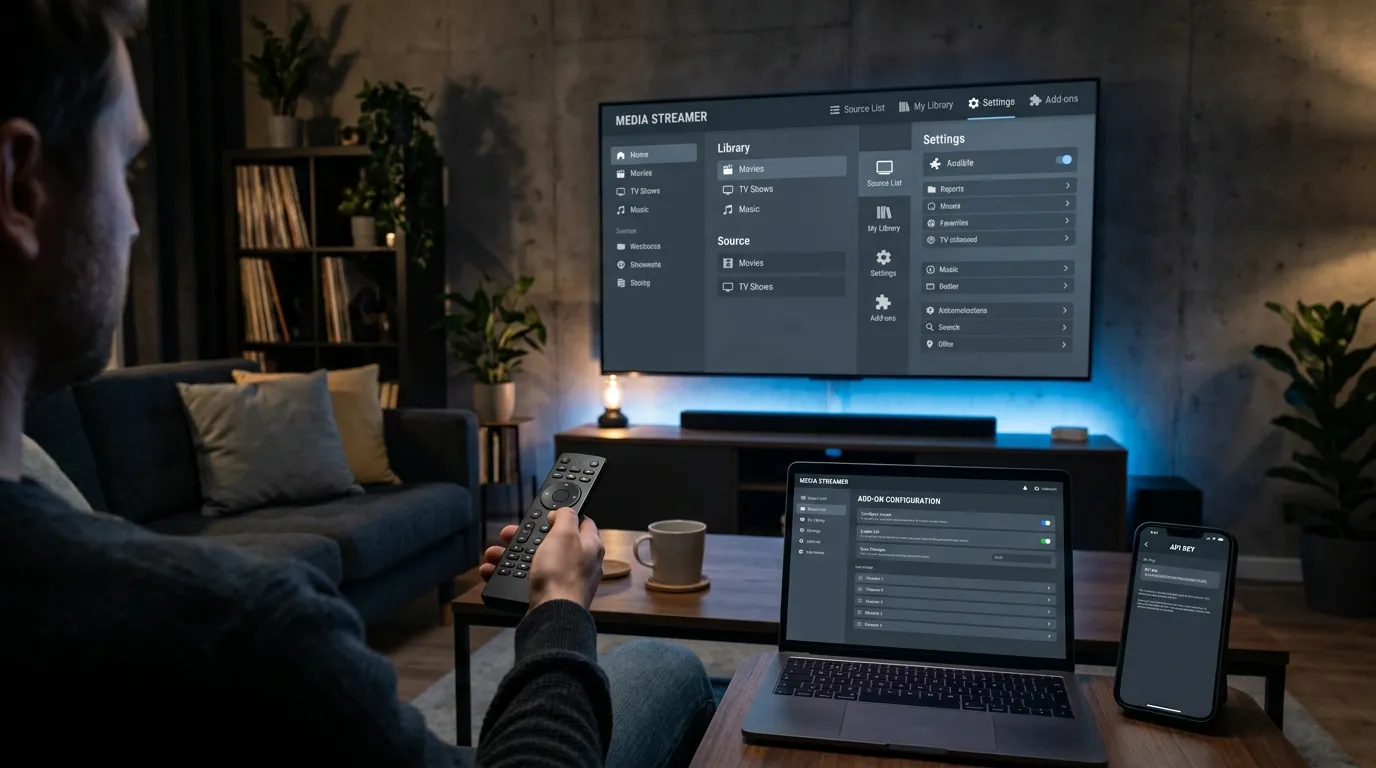
After install, open Umbrella settings, go to its accounts or debrid area, choose TorBox, and paste your API key.
That said, Umbrella users coming from RD should pay attention to source priority settings. This part matters more than people think. If old RD settings are still active or cached links still sit above TorBox in priority order, Umbrella may keep surfacing those links before TorBox gets a chance. If you want TorBox to take precedence, move it above RD or disable RD inside the addon.
I have seen people assume TorBox is not working when the addon is still favoring the old service. That is not a TorBox problem. That is a settings cleanup problem.
A quick note for Syncler users on Android TV
If you use Android TV and bounce between Kodi and Syncler, TorBox may fit into that setup too, depending on the app path you prefer. Syncler users who like the Android TV interface but still keep Kodi installed for addon flexibility may find it useful to run both. Kodi handles POV or Umbrella. Syncler covers the lean-back experience.
I would not call Syncler a replacement for Kodi because they serve different moods. Kodi feels like a toolbox. Syncler feels like a couch app. If you want alternatives on that side, this page on Syncler alternatives for Android TV is worth a look.
Kodi 21 Omega compatibility and setup notes
Kodi 21 Omega compatibility matters because addon support can lag behind major Kodi updates. POV has remained a practical pick for this setup, and TorBox account integration inside a maintained addon is what most users care about. You do not need a weird legacy Kodi build to make this work.
If you run a custom skin, menu labels may shift slightly. File Manager might sit in a different spot. Add-on settings may open through a context menu instead of a visible gear icon. The flow still stays the same. Enable unknown sources. Add the repository source. Install the repo zip. Install POV. Paste your TorBox API key. Test playback.
That is the shape of it, no matter how themed your setup looks.
When your streams work and when they do not
Once TorBox is active in POV, your day-to-day use should feel pretty normal. Search for a title, pick a source, and play. If source lists feel thin, the cause may be the title, scraper package, or provider set inside POV. If playback hangs on one source, try the next one. Cached debrid links are still links, and not every host behaves the same way.
If nothing resolves at all, go back to the account settings and recheck your key. Then confirm your internet connection and addon updates. If you installed POV and never touched scraper providers, you may need to review those too. A debrid account with no working scraper support is like buying theater seats and forgetting the movie.
That sounds harsh, but it is the part people skip.
Closing thoughts on setting up TorBox in Kodi
If your goal is to get Kodi working with fewer source headaches, TorBox makes a strong case. The setup inside POV is short, the API key method is easy to manage, and the shift makes sense for users frustrated with filtered or weaker RD results. I like setups that do not ask for drama. This one does not.
You log into the dashboard, copy the API key from Settings, install POV through its repository, paste the key into the TorBox account section, and test a title. That is it. If you want a debrid service that fits Kodi without a lot of ceremony, TorBox is easy to take seriously.
And once your streams are sorted, if you want your local server setup to feel more polished, take a look at the preroll library for Plex Emby and Jellyfin. A smooth stream is nice. A smooth stream with a cinema-style intro feels even better.